
How many times have you rewritten the same systems across different Unity projects? Or copied entire folders from an old project, only to spend hours fixing references, renaming namespaces, and adapting the code to fit a slightly different architecture?
That repetition doesn’t just waste time – it slows down your development and creates maintenance headaches across projects.
This guide walks you through a set of reusable, modular Unity packages you can drop into any project to speed up development. You’ll build them once as packages and install them via Git wherever you need them, instead of reimplementing the same systems every time.
The article covers four core packages:
com.core.initializer – Finds and initializes your game controllers at runtime (MVC-style) so startup and dependencies centralized.
com.core.data – Handles local (and optionally cloud) save data using MemoryPack binary serialization and a provider abstraction so you can switch or extend storage backends.
com.core.ui – Manages popups and full-screen UIs in a consistent way so you can show dialogs, panels, and screens without duplicating logic.
com.core.dotween – Wraps the DoTween tween engine as a Unity package so com.core.ui (and other packages) can reference it for animations.
In this tutorial, we’ll build all four packages step by step. The Initializer, Data, UI, and DoTween packages are all documented so you can easily follow along. All packages are also upload to github which you can find the links at the end.
Table of Contents
What You Will Learn
How to create a Unity package with the Package Manager
How to set up the package structure
How to built a centralized initialization flow for your packages
How to use UniTask for async initialization on Unity's main thread
How the Data package uses
IDataProviderand MemoryPack for local save/loadHow the UI package uses popups (stack) and screens (single active) with DoTween animations
Prerequisites
Before you start, make sure you have:
Unity installed (any Long Term Support version compatible with the packages. The referenced packages target Unity 6000.3)
Git installed
Jetbrains Rider or Visual Studio Community installed
Know how to use Unity game engine
Know C# and async/await structures
You will use the Unity Package Manager to create packages, then upload and install them via Git in other projects.
Set Up Your Development Project
Create a new Unity project if you don’t already have one. We’ll use it as a playground to build and test your packages. This project (and not the packages themselves) is your development environment.

Package 1: The Initializer
The first package is com.core.initializer. It finds all your controllers, runs their async initialization before the first scene loads, and lets the rest of the game access them via a single handler.
What com.core.initializer Does
Early initialization: Runs at
RuntimeInitializeLoadType.BeforeSceneLoad, so all controllers exist and are initialized before the first scene loads.Central access: Stores each controller by its type and exposes them through a type-safe getter.
Completion signaling: Exposes a static event (
ControllersInitialized) and aUniTaskCompletionSource(InitializationCompleted) so you can run code only after all controllers have finished initializing.
Create the Initializer Package
To start, open Window → Package Manager (under Package Management). Then click the + button and choose Create package.
Name the package com.core.initializer (or your preferred name).


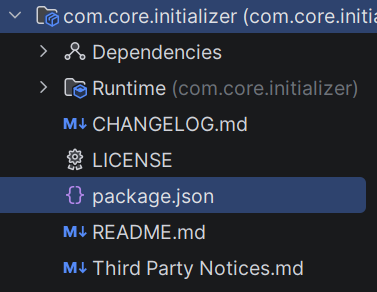
Unity creates the essential package files for you.

You can edit package.json and the assembly definition (asmdef) names to match your naming. The full set of changes is not listed here. The final package is available on GitHub (linked at the end).
Add the UniTask Dependency
Unity runs on the main thread, and C# Tasks can be problematic in that context. They don’t know about the Unity Editor's play state and keep running after exiting play mode for example. So you’ll need to handle these cases manually. For these reasons, this package uses UniTask instead of C# Tasks for async operations.
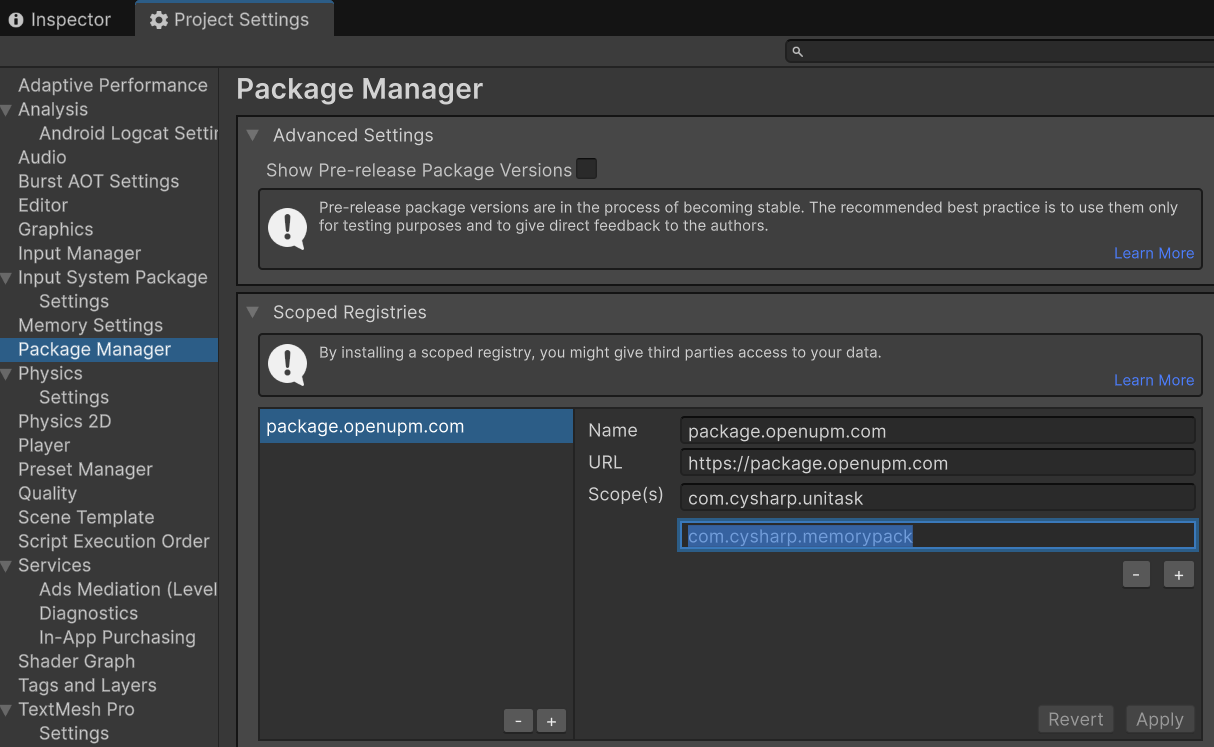
Git-based dependencies are supported at the project level but not at the package level. Add UniTask via OpenUPM by following the manual installation steps.

Add UniTask as a dependency in package.json of initializer package:
"dependencies": {
  "com.cysharp.unitask": "2.5.10"
}
Also reference UniTask in the asmdef file.

You’ll need to follow this dependency flow for the rest of the packages you create.
Implement the Package Structure
The initializer uses an MVC-like architecture. Controllers handle both initialization and game logic. You could later split initialization into services and keep business logic in controllers (for example, an MVCS-style setup). This tutorial keeps things simple and uses only controllers.
Target layout:
Runtime/Interface/ –
IControllerRuntime/Helper/ –
Creator(reflection-based instance creation)Runtime/ –
ControllerHandler(orchestrates initialization)

All controllers implement the IController interface. The Initialize method returns a UniTask so initialization can be async on the main thread.
using Cysharp.Threading.Tasks;

namespace com.core.initializer
{
    public interface IController
    {
        bool IsInitialized { get; }

        UniTask Initialize();
    }
}
Create the Creator Helper
You’ll need to find all types that implement IController, create instances of them at runtime, and also find MonoBehaviours that implement IController (since those cannot be created via reflection). The Creator class does both.
using System;
using System.Collections.Generic;
using System.Linq;
using UnityEngine;

namespace com.core.initializer
{
    public static class Creator
    {
        /// <summary>
        /// Creates instances of every type which inherits from T interface.
        /// </summary>
        public static IEnumerable<T> CreateInstancesOfType<T>(params Type[] exceptTypes)
        {
            var interfaceType = typeof(T);

            var result = AppDomain.CurrentDomain.GetAssemblies().SelectMany(x => x.GetTypes()).Where
                (
                 x => interfaceType.IsAssignableFrom(x) &&
                      !x.IsInterface                    &&
                      !x.IsAbstract                     &&
                      exceptTypes.All(type => !x.IsSubclassOf(type) && x != type)
                ).Select(Activator.CreateInstance);

            return result.Cast<T>();
        }

        public static IEnumerable<T> GetMonoControllers<T>() => UnityEngine.Object.FindObjectsByType<MonoBehaviour>(FindObjectsInactive.Include, FindObjectsSortMode.None).OfType<T>();
    }
}
Using reflection at runtime has some overhead. You can optimize this later with baking the reflection in editor and using it at runtime. For MonoBehaviours, FindObjectsByType is used here for simplicity. In a larger project, you might use a dependency injection solution such as VContainer or Reflex.
Implement the ControllerHandler
The ControllerHandler uses Creator to gather all IController instances (both reflection-created and MonoBehaviours), initializes them in order, and exposes an event and a UniTaskCompletionSource so the rest of the game can wait for startup to finish.
using System;
using System.Collections.Generic;
using System.Linq;
using Cysharp.Threading.Tasks;
using UnityEngine;

namespace com.core.initializer
{
    public class ControllerHandler
    {
        public static readonly UniTaskCompletionSource InitializationCompleted = new();

        public static event Action ControllersInitialized;

        private static Dictionary<Type, IController> _controllers = new();

        [RuntimeInitializeOnLoadMethod(RuntimeInitializeLoadType.BeforeSceneLoad)]
        public static async void Initialize()
        {
            var controllers = Creator.CreateInstancesOfType<IController>(typeof(MonoBehaviour)).ToList();
            controllers.AddRange(Creator.GetMonoControllers<IController>());

            Debug.Log("Initializing controller");

            foreach (var controller in controllers)
            {
                Debug.Log($"<color=yellow>Initializing {controller.GetType().Name}</color>");
                await controller.Initialize();
                _controllers.Add(controller.GetType(), controller);
                Debug.Log($"<color=green>Initialized {controller.GetType().Name}</color>");
            }

            Debug.Log("<color=green>All controllers are initialized</color>");
            ControllersInitialized?.Invoke();
            InitializationCompleted?.TrySetResult();
        }

        public static T GetController<T>() where T : class, IController => _controllers[typeof(T)] as T;
    }
}
How to Test the Initializer
Create a class that implements
IController(or a MonoBehaviour that implements it).Implement
Initialize()with your setup logic (you can useawaitand UniTask).After initialization, access the controller with:
var myController = ControllerHandler.GetController<MyController>();
You can also subscribe to ControllerHandler.ControllersInitialized or await ControllerHandler.InitializationCompleted.Task to run code after all controllers are ready.
There are some limitations here. First, it can be hard to handle dependencies between different controllers. Second, it’s easy to run into circular dependencies.
When you check the GitHub repo, a DI framework may already be implemented to address these limitations. Make sure to open an issue if you want this feature.
Package 2: The Data Package
com.core.data handles local saving with a binary serializer. The package uses MemoryPack for fast, binary serialization and defines an IDataProvider interface so you can plug in different providers (local, cloud, or hybrid).
Package dependency: com.cysharp.memorypack (version 1.10.0). Add it to your project via OpenUPM and add it to package.json and the asmdef for com.core.data.
Create a new package and name it com.core.data. Use a structure such as:
Runtime/Interface/ –
IDataProviderRuntime/Providers/ –
LocalDataProviderRuntime/ – optional sample
DataController(in your game assembly) that implementsIControllerand uses anIDataProvider

All data providers use the IDataProvider interface.
using Cysharp.Threading.Tasks;

namespace com.core.data
{
    public interface IDataProvider
    {
        bool     IsInitialized { get; }
        void     Save<T>(string key, T data);
        T        Load<T>(string key, T defaultValue = default);
        bool     HasKey(string  key);
        string[] GetKeys();
        UniTask  Delete(string key);
        UniTask  DeleteAll();
    }
}
You will use UniTask in the data package as well. Add com.cysharp.unitask to package.json since both IController and IDataProvider uses it.
Here’s the DataController:
using System;
using System.Collections.Generic;
using System.Text;
using com.core.data;
using com.core.initializer;
using Cysharp.Threading.Tasks;
using UnityEngine;

namespace com.core.data
{
    public class DataController : IController
    {
        private const string PLAYER_VERSION_KEY = "player-version-key";

        private IDataProvider _provider;

        public bool IsInitialized { get; private set; }

        public UniTask Initialize()
        {
            _provider = new LocalDataProvider();
            SaveUserVersion();
            IsInitialized = true;
            return UniTask.CompletedTask;
        }

        private void SaveUserVersion()
        {
            var versionHistory = Load(PLAYER_VERSION_KEY, new List<string>());
            var sb             = new StringBuilder();
            versionHistory.ForEach(vh => sb.Append(vh + Environment.NewLine));
            Debug.Log($"[DataController] Player version history: {sb}");

            if (!versionHistory.Contains(Application.version))
            {
                Debug.Log($"[DataController] Player's current version: {Application.version}");
                versionHistory.Add(Application.version);
                Save(PLAYER_VERSION_KEY, versionHistory);
            }
        }

        public void Save<T>(string key, T data) => _provider.Save(key, data);

        public T Load<T>(string key, T defaultValue = default) => _provider.Load(key, defaultValue);

        public bool         HasKey(string key)  => _provider.HasKey(key);
        public string[]     GetKeys()           => _provider.GetKeys();
        public UniTask      Delete(string key)  => _provider.Delete(key);
        public UniTask      DeleteAll()         => _provider.DeleteAll();
        public List<string> GetVersionHistory() => Load(PLAYER_VERSION_KEY, new List<string>());
    }
}
The controller delegates all logic to LocalDataProvider, which uses MemoryPack to serialize and write bytes to a "Data" folder under Application.persistentDataPath. The controller also keeps the user's app version history, which is useful for upgrade prompts or blocking old versions.
Here’s the full implementation:
using System;
using System.Collections.Generic;
using System.IO;
using System.Text;
using Cysharp.Threading.Tasks;
using MemoryPack;
using UnityEngine;

namespace com.core.data
{
    public class LocalDataProvider : IDataProvider
    {
        private const    string StorageFolderName = "Data";
        private readonly string _storagePath;

        private static readonly UTF8Encoding KeyEncoding = new(false);

        public bool IsInitialized => true;

        public LocalDataProvider()
        {
            _storagePath = Path.Combine(Application.persistentDataPath, StorageFolderName);
            EnsureStorageDirectoryExists();
        }

        public void Save<T>(string key, T data)
        {
            if (string.IsNullOrEmpty(key)) { Debug.LogWarning("[LocalDataProvider] Save called with null or empty key."); return; }
            if (data == null) { Debug.LogWarning("[LocalDataProvider] Save called with null data."); Delete(key).Forget(); return; }
            try
            {
                byte[] bin = MemoryPackSerializer.Serialize(data);
                WriteBytes(key, bin);
            }
            catch (Exception ex) { Debug.LogError($"[LocalDataProvider] Save failed for key '{key}': {ex.Message}"); throw; }
        }

        public T Load<T>(string key, T defaultValue = default)
        {
            if (string.IsNullOrEmpty(key)) { Debug.LogWarning("[LocalDataProvider] Load called with null or empty key."); return defaultValue; }
            if (!ReadBytes(key, out byte[] bin)) return defaultValue;
            try { return MemoryPackSerializer.Deserialize<T>(bin) ?? defaultValue; }
            catch (Exception ex) { Debug.LogError($"[LocalDataProvider] Load failed for key '{key}': {ex.Message}"); return defaultValue; }
        }

        public bool HasKey(string key) => !string.IsNullOrEmpty(key) && File.Exists(GetFilePath(key));

        public UniTask Delete(string key)
        {
            if (string.IsNullOrEmpty(key)) return UniTask.CompletedTask;
            try { var filePath = GetFilePath(key); if (File.Exists(filePath)) File.Delete(filePath); }
            catch (Exception ex) { Debug.LogError($"[LocalDataProvider] Delete failed for key '{key}': {ex.Message}"); }
            return UniTask.CompletedTask;
        }

        public UniTask DeleteAll()
        {
            try
            {
                if (!Directory.Exists(_storagePath)) return UniTask.CompletedTask;
                foreach (string file in Directory.GetFiles(_storagePath))
                {
                    try { File.Delete(file); }
                    catch (Exception ex) { Debug.LogWarning($"[LocalDataProvider] Could not delete file '{file}': {ex.Message}"); }
                }
            }
            catch (Exception ex) { Debug.LogError($"[LocalDataProvider] DeleteAll failed: {ex.Message}"); }
            return UniTask.CompletedTask;
        }

        public string[] GetKeys()
        {
            if (!Directory.Exists(_storagePath)) return Array.Empty<string>();
            var keys = new List<string>();
            foreach (string file in Directory.GetFiles(_storagePath))
            {
                try { string key = DecodeKeyFromFileName(Path.GetFileName(file)); if (key != null) keys.Add(key); }
                catch { Debug.LogWarning($"[LocalDataProvider] Could not read file '{file}'."); }
            }
            return keys.ToArray();
        }

        private void EnsureStorageDirectoryExists() { if (!Directory.Exists(_storagePath)) Directory.CreateDirectory(_storagePath); }
        private void WriteBytes(string key, byte[] bin) { EnsureStorageDirectoryExists(); File.WriteAllBytes(GetFilePath(key), bin); }
        private bool ReadBytes(string key, out byte[] bin) { string filePath = GetFilePath(key); if (!File.Exists(filePath)) { bin = null; return false; } bin = File.ReadAllBytes(filePath); return true; }
        private string GetFilePath(string key) => Path.Combine(_storagePath, EncodeKeyToFileName(key));
        private static string EncodeKeyToFileName(string key) { byte[] bytes = KeyEncoding.GetBytes(key); string base64 = Convert.ToBase64String(bytes); return base64.Replace('+', '-').Replace('/', '_'); }
        private static string DecodeKeyFromFileName(string fileName) { try { string base64 = fileName.Replace('-', '+').Replace('_', '/'); return KeyEncoding.GetString(Convert.FromBase64String(base64)); } catch { return null; } }
    }
}
You can implement another IDataProvider (for example JSON via Newtonsoft or PlayerPrefs) and swap it in your DataController.
In production, you might use a local and a cloud provider and sync data based on the player's online status. The com.core.data GitHub repo may be updated with cloud saving and syncing. You can open an issue if you need that feature.
Package 3: com.core.dotween
com.core.dotween is a Unity package wrapper around DOTween (Demigiant). DoTween is a widely used, production-ready tween engine. The UI package uses it for popup show/hide animations.
DOTween is not available on OpenUPM, so you’ll typically need to download it from the Unity Asset Store and import it into your project (for example, under Assets/Plugins).
Then you’ll run the DOTween setup window(it should pop automatically after importing) and click Create ASMDEF so assembly definition files are generated and you can reference them from other packages.
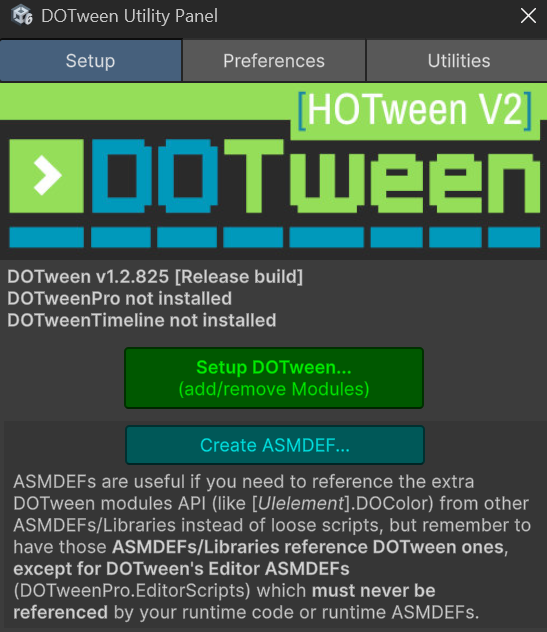
Next, create a new package (for example, com.core.dotween) and move the Demigiant folder from Assets/Plugins into the package folder so that com.core.ui (or any other package) can depend on com.core.dotween via Package Manager or Git.

After that, reference com.core.dotween in com.core.ui's asmdef(You will create the UI package right after this) so you can use DG.Tweening namespace in BasePopup and other UI scripts.
com.core.dotween has no external dependencies – it only wraps the DOTween asset.
Package 4: The UI Package
com.core.ui centralizes how you show popups and full-screen UIs. It contains:
Popups – Modal or non-modal dialogs (confirm/cancel, alerts, forms) with a consistent API so you don’t duplicate panel logic in every screen. Popups are stacked – the top one is closed first.
Screens – Full-screen panels (for example, loading, main menu). Only one screen is active at a time, and switching a screen hides the current one and shows the new one.
Create a new package named com.core.ui with a structure such as:
Runtime/Interface/ –
IUIRuntime/UIs/ –
BasePopup,BaseScreenRuntime/ –
UIController,UIParentRuntime/Resources/UIPrefabs/ –
UIParentprefab, and subfolders Popups and Screens

Add com.core.dotween, com.core.initializer, and com.cysharp.unitask as dependencies in package.json and asmdef.
Popups work like a stack: each popup is shown on top of the previous one and closed from top to bottom. Screens are single-active: only one screen is visible at a time. UIController hides the current one when you show another. UIController is the single point of contact for both screens and popups and handles stacking, caching, and background placement.
IUI Interface
Both BasePopup and BaseScreen implement IUI:
using System;
using Cysharp.Threading.Tasks;

namespace com.core.ui
{
    public interface IUI
    {
        event Action<IUI> Showed;
        event Action<IUI> Hidden;

        UniTask ShowAsync();
        UniTask HideAsync();
    }
}
IUI is a very basic interface with 2 async Show/Hide methods and 2 events to be fired upon completion of those methods.
BasePopup
BasePopup uses DoTween to animate scale on show/hide and exposes events and overridable animation methods:
using System;
using Cysharp.Threading.Tasks;
using DG.Tweening;
using UnityEngine;

namespace com.core.ui
{
    public abstract class BasePopup : MonoBehaviour, IUI
    {
        public event Action<IUI> StartedShowing;
        public event Action<IUI> Showed;
        public event Action<IUI> Hidden;

        [SerializeField] private float   openingTime  = 0.35f;
        [SerializeField] private float   closingTime  = 0.25f;
        [SerializeField] private Vector3 initialScale = new(0.75f, 0.75f, 0.75f);
        [SerializeField] private Ease   openingEase  = Ease.OutBack;
        [SerializeField] private Ease   closingEase  = Ease.InBack;

        protected virtual Tweener PlayShowAnimation(Action completedCallback) => transform.DOScale(Vector3.one, openingTime).SetEase(openingEase).SetUpdate(true).OnComplete(() => completedCallback?.Invoke());
        protected virtual Tweener PlayHideAnimation(Action completedCallback) => transform.DOScale(initialScale, closingTime).SetEase(closingEase).SetUpdate(true).OnComplete(() => completedCallback?.Invoke());

        public UniTask ShowAsync()
        {
            StartedShowing?.Invoke(this);
            transform.SetAsLastSibling();
            var utcs = new UniTaskCompletionSource();
            transform.localScale = initialScale;
            gameObject.SetActive(true);

            PlayShowAnimation(() => OnAnimationShowed(utcs));
            return utcs.Task;
        }

        public void Show() => ShowAsync().Forget();

        public UniTask HideAsync()
        {
            var utcs = new UniTaskCompletionSource();
            PlayHideAnimation(() => OnAnimationCompleted(utcs));
            return utcs.Task;
        }

        private void OnAnimationShowed(UniTaskCompletionSource utcs)
        {
            Showed?.Invoke(this);
            utcs.TrySetResult();
        }

        private void OnAnimationCompleted(UniTaskCompletionSource utcs)
        {
            transform.SetAsFirstSibling();
            gameObject.SetActive(false);
            Hidden?.Invoke(this);
            utcs.TrySetResult();
        }

        public void Hide() => HideAsync().Forget();
    }
}
You can see that DoTween is the core component in this class and a lot of parameters are configurable like opening/closing times and easings. Notice how DoTween completion callbacks are utilized to fire Showed and Hidden events.
Another important thing here is the usage of SetUpdate(true) for animations. This makes animations to ignore timescale. I found that most of the time it's best to ignore the timescale for animations but if you don't want this then feel free to change it.
BaseScreen
BaseScreen only enables/disables the GameObject and raises events. There’s no animation:
using System;
using Cysharp.Threading.Tasks;
using UnityEngine;

namespace com.core.ui
{
    public abstract class BaseScreen : MonoBehaviour, IUI
    {
        public event Action<IUI> Showed;
        public event Action<IUI> Hidden;

        public virtual UniTask ShowAsync()
        {
            gameObject.SetActive(true);
            Showed?.Invoke(this);
            return UniTask.CompletedTask;
        }

        public UniTask HideAsync()
        {
            gameObject.SetActive(false);
            Hidden?.Invoke(this);
            return UniTask.CompletedTask;
        }
    }
}
You will notice that BaseScreen doesn't need UniTask since it is not performing any async operations but it is still beneficial to have this since it doesn't cause any overheads and if we ever need an animation for any of our screens like popups, we have it ready.
UIController
UIController implements IController, instantiates UIParent from Resources, and provides APIs to push/pop popups and show/hide screens. It caches popup and screen instances by type and loads prefabs from Resources:
UIParent:
Resources/UIPrefabs/UIParentPopups:
Resources/UIPrefabs/Popups/<TypeName>.prefabScreens:
Resources/UIPrefabs/Screens/<TypeName>.prefab
using System;
using System.Collections.Generic;
using com.core.initializer;
using Cysharp.Threading.Tasks;
using UnityEngine;
using Object = UnityEngine.Object;

namespace com.core.ui
{
    public class UIController : IController
    {
        private const string UI_PARENT_PATH    = "UIPrefabs/UIParent";
        private const string POPUPS_RESOURCES  = "UIPrefabs/Popups";
        private const string SCREENS_RESOURCES = "UIPrefabs/Screens";

        private readonly Stack<BasePopup>             _popupStack  = new();
        private readonly Dictionary<Type, BasePopup>  _popupCache  = new();
        private readonly Dictionary<Type, BaseScreen> _ScreenCache = new();

        private BaseScreen _currentScreen;
        private UIParent   _uiParent;

        public bool IsInitialized { get; private set; }

        public UniTask Initialize()
        {
            var uiParentPrefab = Resources.Load<UIParent>(UI_PARENT_PATH);
            if (uiParentPrefab == null)
            {
                Debug.LogError($"[UIController] UIParent prefab not found at {UI_PARENT_PATH}. Ensure it exists in a Resources folder.");
                return UniTask.CompletedTask;
            }

            _uiParent      = Object.Instantiate(uiParentPrefab);
            _uiParent.name = "UIParent";

            Object.DontDestroyOnLoad(_uiParent.gameObject);

            IsInitialized = true;
            return UniTask.CompletedTask;
        }

        public async UniTask<TPopup> PushPopupAsync<TPopup>() where TPopup : BasePopup
        {
            var popup = GetOrCreatePopup<TPopup>();
            _popupStack.Push(popup);
            var popupTask = popup.ShowAsync();
            UpdateBackgroundForTopPopup();
            await popupTask;
            return popup;
        }

        public void PushPopup<TPopup>() where TPopup : BasePopup => PushPopupAsync<TPopup>().Forget();

        public async UniTask PopPopupAsync()
        {
            if (_popupStack.Count == 0)
            {
                Debug.LogWarning("[UIController] PopPopup called but popup stack is empty.");
                return;
            }

            var top = _popupStack.Pop();
            await top.HideAsync();
            UpdateBackgroundForTopPopup();
        }

        public void PopPopup() => PopPopupAsync().Forget();

        public BasePopup PeekPopup() => _popupStack.Count > 0 ? _popupStack.Peek() : null;

        public async UniTask<TScreen> ShowScreenAsync<TScreen>() where TScreen : BaseScreen
        {
            var screen = GetOrCreateScreen<TScreen>();

            if (_currentScreen == screen && screen.gameObject.activeSelf) return screen;
            if (_currentScreen != null   && _currentScreen != screen && _currentScreen.gameObject.activeSelf) await _currentScreen.HideAsync();

            _currentScreen = screen;
            await screen.ShowAsync();
            return screen;
        }

        public async UniTask HideScreenAsync<TScreen>() where TScreen : BaseScreen
        {
            var type = typeof(TScreen);
            if (!_ScreenCache.TryGetValue(type, out var screen))
            {
                Debug.LogWarning($"[UIController] HideScreenAsync<{type.Name}> called but Screen was never shown (not in cache).");
                return;
            }

            await screen.HideAsync();

            if (_currentScreen == screen) _currentScreen = null;
        }

        public void ShowScreen<TScreen>() where TScreen : BaseScreen => ShowScreenAsync<TScreen>().Forget();
        public void HideScreen<TScreen>() where TScreen : BaseScreen => HideScreenAsync<TScreen>().Forget();

        private TPopup GetOrCreatePopup<TPopup>() where TPopup : BasePopup
        {
            var type = typeof(TPopup);
            if (_popupCache.TryGetValue(type, out var cached) && cached != null) return (TPopup)cached;

            var prefab = LoadPopupPrefab<TPopup>();
            if (prefab == null)
            {
                Debug.LogError($"[UIController] Popup prefab for {type.Name} not found at {POPUPS_RESOURCES}/{type.Name}. Ensure the prefab exists in a Resources folder.");
                return null;
            }

            var instance = UnityEngine.Object.Instantiate(prefab, _uiParent.PopupParent);
            instance.gameObject.SetActive(false);

            var popup = instance.GetComponent<TPopup>();
            _popupCache[type] = popup;

            return popup;
        }

        private TScreen GetOrCreateScreen<TScreen>() where TScreen : BaseScreen
        {
            var type = typeof(TScreen);
            if (_ScreenCache.TryGetValue(type, out var cached) && cached != null) return (TScreen)cached;

            var prefab = LoadScreenPrefab<TScreen>();
            if (prefab == null)
            {
                Debug.LogError($"[UIController] Screen prefab for {type.Name} not found at {SCREENS_RESOURCES}/{type.Name}. Ensure the prefab exists in a Resources folder.");
                return null;
            }

            var instance = UnityEngine.Object.Instantiate(prefab, _uiParent.ScreenParent);
            instance.gameObject.SetActive(false);

            var screen = instance.GetComponent<TScreen>();
            _ScreenCache[type] = screen;

            return screen;
        }

        private TPopup  LoadPopupPrefab<TPopup>() where TPopup : BasePopup     => LoadViewPrefab<TPopup>(POPUPS_RESOURCES);
        private TScreen LoadScreenPrefab<TScreen>() where TScreen : BaseScreen => LoadViewPrefab<TScreen>(SCREENS_RESOURCES);

        private static T LoadViewPrefab<T>(string resourcesPath) where T : MonoBehaviour
        {
            var type = typeof(T);
            var path = $"{resourcesPath}/{type.Name}";
            var go   = Resources.Load<GameObject>(path);
            return go != null ? go.GetComponent<T>() : null;
        }

        private void UpdateBackgroundForTopPopup()
        {
            var backgroundGO = _uiParent.BackgroundGO;
            if (backgroundGO == null) return;

            if (_popupStack.Count > 0)
            {
                var topPopup = _popupStack.Peek();
                if (topPopup != null && topPopup.gameObject.activeSelf)
                {
                    // Position background one step behind the top popup
                    var topPopupIndex = topPopup.transform.GetSiblingIndex();
                    backgroundGO.SetActive(true);
                    backgroundGO.transform.SetSiblingIndex(Mathf.Max(0, topPopupIndex - 1));
                }
                else
                {
                    // Top popup is inactive, hide background
                    backgroundGO.SetActive(false);
                }
            }
            else
            {
                // No popups in stack, hide background
                backgroundGO.SetActive(false);
            }
        }
    }
}
Usage:
var ui = ControllerHandler.GetController<UIController>();
await ui.PushPopupAsync<MyPopup>();
await ui.PopPopupAsync();
await ui.ShowScreenAsync<MainMenuScreen>();
await ui.HideScreenAsync<LoadingScreen>();
UIController also updates the background GameObject so it indexes behind the top popup.
It uses GetOrCreatePopup<TPopup>() / GetOrCreateScreen<TScreen>() to load and cache prefabs from Resources/UIPrefabs/Popups/<TypeName> and Resources/UIPrefabs/Screens/<TypeName>, pushes popups onto a stack, and shows/hides screens with async methods.
UIParent is a MonoBehaviour that holds references to ScreenParent, PopupParent, and BackgroundGO:
using UnityEngine;

namespace com.core.ui
{
    public class UIParent : MonoBehaviour
    {
        [SerializeField] private Transform  screensParent;
        [SerializeField] private Transform  popupsParent;
        [SerializeField] private GameObject backgroundGO;

        public Transform  ScreenParent => screensParent;
        public Transform  PopupParent  => popupsParent;
        public GameObject BackgroundGO => backgroundGO;
    }
}

UIParent prefab has a canvas and UIParent script attached:
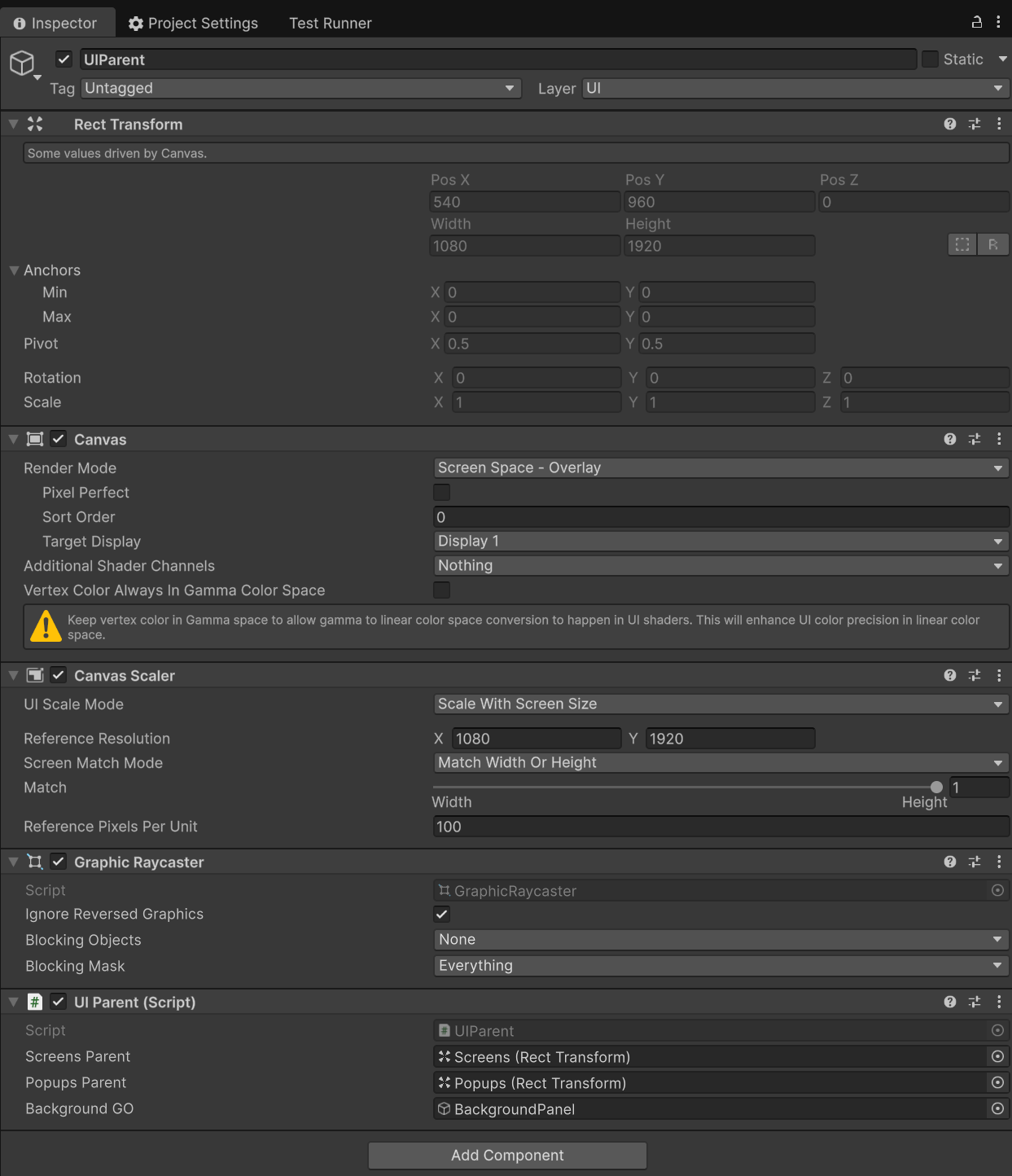
There are a couple limitations here as well. First, popups and screens must live under Resources/UIPrefabs/Popups and Resources/UIPrefabs/Screens. Second, prefab name must match the script/type name (for example, TestPopup prefab name for a script named TestPopup).
Summary
In this article, you set up a Unity project and walked through creating four reusable packages:
com.core.initializer – You created the package, added UniTask, defined
IController, used theCreatorhelper to find and create controllers (including MonoBehaviours), and implementedControllerHandlerto run initialization atBeforeSceneLoadand expose controllers viaGetController<T>().com.core.data – You use
IDataProviderandLocalDataProviderwith MemoryPack for binary local save/load, and theDataControllerthat implementsIControllerand tracks version history.com.core.dotween – You wrap the DoTween asset as a package so other packages (like com.core.ui) can reference it for animations.
com.core.ui – You created a modular UI package that you can use in your games to handle popups and full size screens. You can also extend this to add other UI types in the future.
Building these as separate packages keeps your code modular and speeds up development across projects. You can install each package via Git into any Unity project.
Example manifest.json file to implement these packages:
{
  "dependencies"    : {
	"com.core.data"       : "https://github.com/TalhaCagatay/com.core.data.git#v0.1.0",
	"com.core.initializer": "https://github.com/TalhaCagatay/com.core.initializer.git#v0.1.0",
	"com.core.dotween"    : "https://github.com/TalhaCagatay/com.core.dotween.git#v0.1.0",
	"com.core.ui"         : "https://github.com/TalhaCagatay/com.core.ui.git#v0.1.0"
  },
  "scopedRegistries": [
	{
	  "name"  : "package.openupm.com",
	  "url"   : "https://package.openupm.com",
	  "scopes": [
		"com.cysharp.unitask",
		"com.cysharp.memorypack"
	  ]
	}
  ]
}
Resources:
com.core.initializer on GitHub
com.core.data on GitHub
com.core.dotween on Github
com.core.ui on Github
Example game that I developed and used many modular systems like the ones you built in this article.