
By Faizan Bashir
Introduction
Elastic Kubernetes Service (EKS) is the fully managed Kubernetes service from AWS. It is deeply integrated with many AWS services, such as AWS Identity and Access Management (IAM) (for authentication to the cluster), Amazon CloudWatch (for logging), Auto Scaling Groups (for scaling worker nodes), and Amazon Virtual Private Cloud (VPC) (for networking). Many companies trust Amazon EKS to run their containerized workloads.
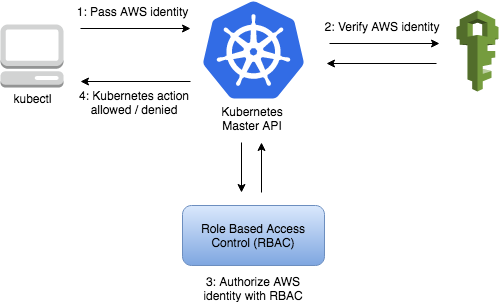
EKS uses IAM to provide authentication to your Kubernetes cluster (via the aws eks get-token command, or the AWS IAM Authenticator for Kubernetes). For authorization it relies on native Kubernetes Role Based Access Control (RBAC). IAM is used for authentication to your EKS Cluster. And you can manage the permissions for interacting with your cluster’s Kubernetes API through the native Kubernetes RBAC system.
How to create an IAM User
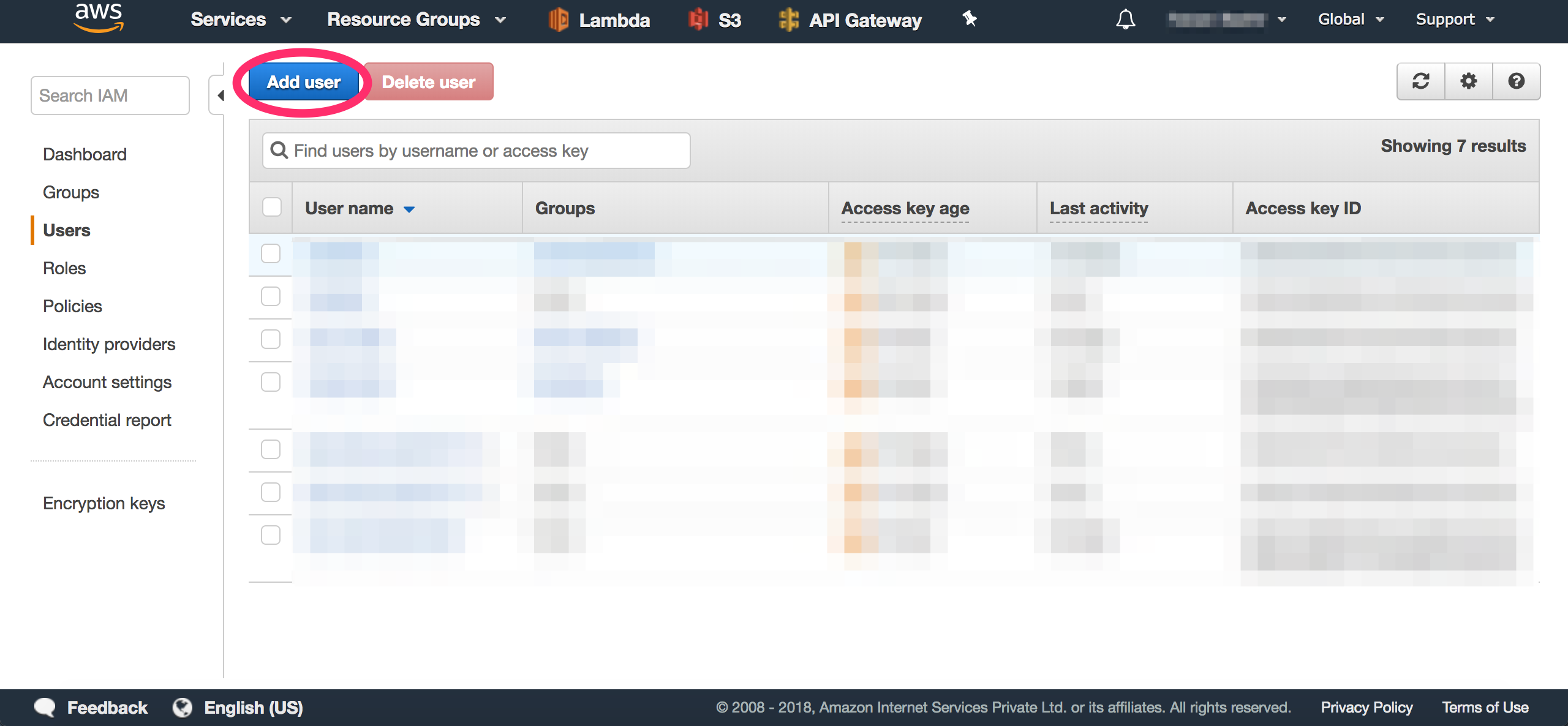
Go to your AWS Console where you will find the IAM service listed under the “Security, Identity & Compliance” group. Inside the IAM dashboard click on the Users tab and click the “Add User” button.
Create a new user and allow the user programmatic access by clicking on the "Programmatic access" checkbox. You do not need any particular permission for your user to access EKS. You can go ahead without selecting any permission.
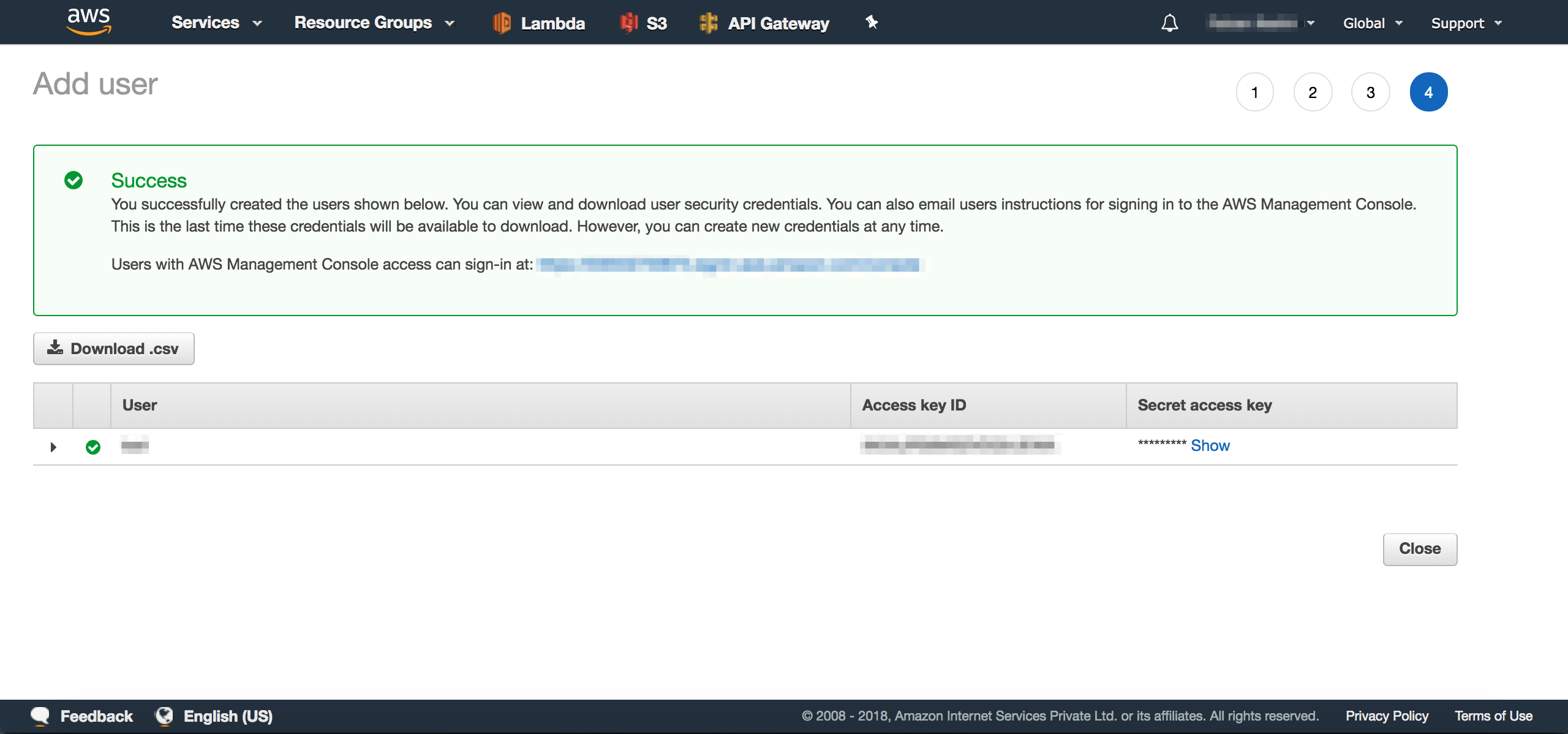
After the user is created, you will have access to the user's Access Key ID and Secret Access Key. You will be required to use these keys in the next step.
Configure the AWS CLI
Configuring your AWS CLI with a new user is as simple as running the aws configure command and providing the AWS Access Key ID and the AWS Secret Access Key. The Default region name and Default Output format are optional, though.
$ aws configure --profile eks-user
AWS Access Key ID [None]: AKIAI44QH8DHBEXAMPLE
AWS Secret Access Key [None]: je7MtGbClwBF/2Zp9Utk/h3yCo8nvbEXAMPLEKEY
Default region name [None]: us-east-1
Default output format [None]: text
Once configured you can test to see if the user is properly configured using the aws sts get-caller-identity command:
$ aws sts get-caller-identity --profile eks-user
If the user is properly configured with the aws cli utility you should see a response like the one shown below:
{
    "UserId": "AIDAX7JPBEM4A6FTJRTMB",
    "Account": "123456789012",
    "Arn": "arn:aws:iam::123456789012:user/eks-user"
}
Creating a Role and RoleBinding for the user
With your IAM user properly configured, you can go ahead and create a role for the user. This snippet of code creates a role named eks-user-role with a modest list permission to the pods resource in your cluster.
kind: Role
metadata:
  name: eks-user-role
rules:
- apiGroups: [""]
  resources: ["pods"]
  verbs: ["list"]
Save the above snippet of code in a file and then apply the Role to your Kubernetes cluster:
$ kubectl apply -f role.yaml
With the role configured you need to create a corresponding RoleBinding:
apiVersion: rbac.authorization.k8s.io/v1
kind: RoleBinding
metadata:
  name: eks-user-role-binding
subjects:
- kind: User
  name: eks-user
  apiGroup: rbac.authorization.k8s.io
roleRef:
  kind: Role
  name: eks-user-role
  apiGroup: rbac.authorization.k8s.io
Save the above snippet of code in a file and then apply the Role Binding to your Kubernetes cluster:
$ kubectl apply -f role-binding.yaml
Adding the user to the aws-auth configmap
If you want to grant additional AWS users or roles the ability to interact with your EKS cluster, you must add the users/roles to the aws-auth ConfigMap within Kubernetes in the kube-system namespace.
You can do this by either editing it using the kubectl edit command:
$ kubectl edit configmap aws-auth -n kube-system
Or by importing the aws-auth ConfigMap and applying the changes:
$ kubectl get configmap aws-auth -n kube-system -o yaml > aws-auth.yaml
Add the user under the mapUsers as an item in the aws-auth ConfigMap:
data:
  mapUsers: |
    - userarn: arn:aws:iam::123456789012:user/eks-user
      username: eks-user
      groups:
      - eks-role
If the user is properly configured you should be able to list pods in the Cluster:
$ kubectl get pods --as eks-user
The --as flag impersonates the request to Kubernetes as the given user. You can use this flag to test permissions for any given user.
Configuring permissions for the user
The role which you defined previously only had permission to list pods. The eks-user cannot access any other Kubernetes resources like Deployments, ConfigMaps, Events, Secrets, logs or even shell into a given pod.
In a real-world scenario, you will need to provide permissions to a user to access the required resources. The below snippet of code provides access to resources such as events, pods, deployments, configmaps and secrets.
rules:
- apiGroups: [""]
  resources: ["events"]
  verbs: ["get", "list", "watch"]
- apiGroups: [""]
  resources: ["pods", "pods/log", "pods/exec"]
  verbs: ["list", "get", "create", "update", "delete"]
- apiGroups: ["extensions", "apps"]
  resources: ["deployments"]
  verbs: ["list", "get", "create", "update", "delete"]
- apiGroups: [""]
  resources: ["configmaps"]
  verbs: ["list", "get", "create", "update", "delete"]
- apiGroups: [""]
  resources: ["secrets"]
  verbs: ["list", "get", "create", "update", "delete"]
Add the above permissions to the role.yaml file and apply the changes, using kubectl apply -f.
Test, test and test!
Now go ahead and test to see if the permissions have been properly applied to the eks-user. You can test the same using the above mentioned --as USERNAME flag or set the eks-user as the default profile for the aws cli.
$ export AWS_PROFILE=eks-user
Once configured you can test to see if the user is properly configured using the aws sts get-caller-identity command:
$ aws sts get-caller-identity
You should see a response like the following, indicating the user is properly configured with your aws cli utility:
{
    "UserId": "AIDAX7JPBEM4A6FTJRTMB",
    "Account": "123456789012",
    "Arn": "arn:aws:iam::123456789012:user/eks-user"
}
Test the permissions of the user with the below-mentioned commands.
$ kubectl get pods
$ kubectl get secrets
$ kubectl get configmaps
$ kubectl get deployments
$ kubectl logs <pod-name>
$ kubectl exec -it <pod-name> sh
$ kubectl create configmap my-cm --from-literal=db_username=<USERNAME> --from-literal=db_host=<HOSTNAME>
$ kubectl create secret generic my-secret --from-literal=db_password=<SOME_STRONG_PASSWORD>
Simply put, the eks-user user should be able to perform all the actions specified in the verbs array for pods, secrets, configmaps, deployments, and events. You can read more about it here Kubernetes Authorization Overview.
Can-I or Not
You can use auth can-i to check if you have permission to a resource. To see if you have the permission to get pods simply run:
$ kubectl auth can-i get pods
The answer will be a simple yes or no. Amazing, isn’t it?
Wanna check if you have cluster-admin permissions? Fire this:
$ kubectl auth can-i "*" "*"
Wrap up
EKS provides the Kubernetes control plane with the backend persistence layer. The Kubernetes API server and the master nodes are provisioned and scaled across various availability zones, resulting in high availability and eliminating a single point of failure. An AWS-managed Kubernetes cluster can withstand the loss of an availability zone.
Access and authorization controls are critical for any security system. Kubernetes provides us with an awesome robust RBAC permission mechanism.
Originally published at faizanbashir.me