
What happens when a page has 150 content-heavy cards, but the user can only see the first few?
You might expect the browser to only worry about what's currently visible. But this isn't exactly what happens.
Content can be thousands of pixels below the viewport, and the browser may still have rendering work to do for it.
So I wanted to try something. What if we could basically tell the browser:
You don't need to render all of this right now. Skip the work for content the user can't see yet.
CSS has a property that can help us do exactly that in one line:
.card {
  content-visibility: auto;
}
Which naturally made me curious about how much difference it could actually make.
So instead of stopping at the documentation, I built a page with 150 content-heavy cards, opened Chrome DevTools, and measured it.
The result was much bigger than I expected. But it also introduced another problem.
Let's start with what content-visibility is actually asking the browser to do.
What We'll Cover:
Prerequisites
To follow along with this article, you should have:
A basic understanding of HTML and CSS
A modern browser such as Chrome
Basic familiarity with Chrome DevTools
You don't need any framework knowledge. The experiment uses plain HTML, CSS, and JavaScript so we can focus specifically on the browser's rendering behavior.
What Does content-visibility: auto Actually Do?
The content-visibility property controls whether an element renders its contents.
For this experiment, we're interested in one value:
.card {
  content-visibility: auto;
}
With auto the browser can skip rendering work for an element's contents when that element isn't currently relevant to the user, such as when it's far outside the viewport.
The important part is that we're talking about rendering.
The element hasn't been removed from the DOM. And content-visibility isn't primarily telling the browser not to download its resources.
We're giving the browser an opportunity to avoid rendering work that isn't useful yet.
This works through CSS containment. As the web.dev guide explains, content-visibility: auto applies layout, style, and paint containment. When the contents aren't relevant to the user, the browser can skip more of the work for that subtree.
So without content-visibility, the browser may still do rendering work for content far below the viewport. With it, some of that work can be skipped until the content becomes relevant.
Notice the word can.
content-visibility: auto doesn't guarantee that every element outside the viewport will always have its rendering work skipped. The browser determines whether the contents are relevant to the user and whether their rendering can be skipped.
This sounds useful. But useful by how much?
Time to measure it.
I Built a Page With 150 Cards
I didn't want to test this on a tiny demo where the difference might disappear into measurement noise.
So I deliberately made the page a little ridiculous. It contains 150 content-heavy cards.
Each card has:
a fixed-size image placeholder
a heading and tags
eight paragraphs
ten related items
The number 150 isn't special.
A page doesn't suddenly become a good candidate for content-visibility because it crosses some element-count threshold.
For example, 150 simple <div> elements may give the browser very little expensive work to skip.
But 150 sections containing nested layout, text, lists, images, and other rendering work create a much better opportunity.
For this experiment, that's exactly what I wanted.
I also used plain HTML, CSS, and JavaScript instead of React or another framework.
That was intentional.
If we're testing a CSS rendering optimization, adding framework execution gives us another variable we don't need.
Here's the JavaScript that generates the cards:
const CARD_COUNT = 150;
const PARAGRAPHS_PER_CARD = 8;
const RELATED_ITEMS_PER_CARD = 10;

const cards = [];

for (let i = 1; i <= CARD_COUNT; i++) {
  cards.push(`
    <article class="card">
      <div class="card-image-placeholder"></div>

      <h2>Product ${i}</h2>

      ${Array.from(
        { length: PARAGRAPHS_PER_CARD },
        (_, index) => `
          <p>
            Product ${i}, paragraph ${index + 1}.
            This is sample content used to make
            each card more expensive to render.
          </p>
        `
      ).join("")}

      <ul>
        ${Array.from(
          { length: RELATED_ITEMS_PER_CARD },
          (_, index) => `
            <li>Related item ${index + 1}</li>
          `
        ).join("")}
      </ul>
    </article>
  `);
}

document.querySelector("#feed").innerHTML = cards.join("");
I considered using real images, but that would make the experiment messier.
Network latency, caching, and image decoding could all influence what we see.
So each card uses a CSS placeholder instead:
.card-image-placeholder {
  height: 320px;
  background: linear-gradient(
    135deg,
    #e5e7eb,
    #f3f4f6
  );
}
For each configuration, I kept the browser environment and viewport size the same, and I didn't scroll during the initial-load recording.
I also repeated the tests instead of picking the nicest-looking run.
If you want to reproduce the experiment, I've published the complete example on GitHub here.
It contains the same test page and configurations used for the measurements below, so you can run the experiment yourself and compare the results on your own browser and device.
Now we have something to measure.
First, the Baseline
Before adding content-visibility, I recorded the page three times using the Chrome DevTools Performance panel.
The Rendering activity reported in the Performance recording was:
| Run | Rendering |
|---|---|
| 1 | 39 ms |
| 2 | 44 ms |
| 3 | 42 ms |
| Median | 42 ms |
I used the median rather than choosing the fastest run.
There's one important clarification here. These numbers represent the Rendering activity reported in the DevTools Performance recording.
They're not total page-load time, a Core Web Vital, or a direct measurement of user-perceived performance.
Chrome DevTools reports Rendering as one category in the activity breakdown of a Performance recording, which is why I'll keep referring specifically to the Rendering activity rather than saying the page "rendered in 42 ms."
So our baseline was:
Median Rendering activity: 42 ms
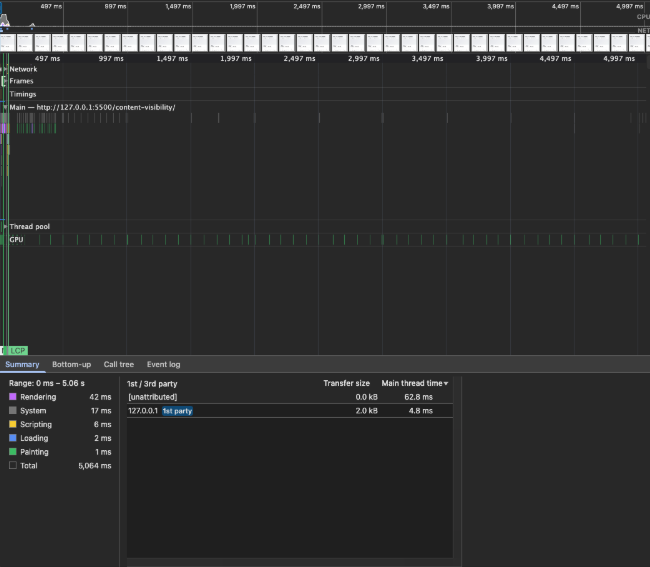
One baseline Performance recording. The 42 ms median above was calculated from three separate runs.
Then I changed exactly one thing:
.card {
  content-visibility: auto;
}
And ran the experiment again.
| Run | Rendering |
|---|---|
| 1 | 20 ms |
| 2 | 21 ms |
| 3 | 20 ms |
| Median | 20 ms |
Okay. That's not subtle.
We went from:
42 ms → 20 ms

Or:

(42 - 20) / 42 × 100 ≈ 52%
In this experiment, adding content-visibility: auto was associated with roughly a 52% reduction in the Rendering activity reported by Chrome DevTools.
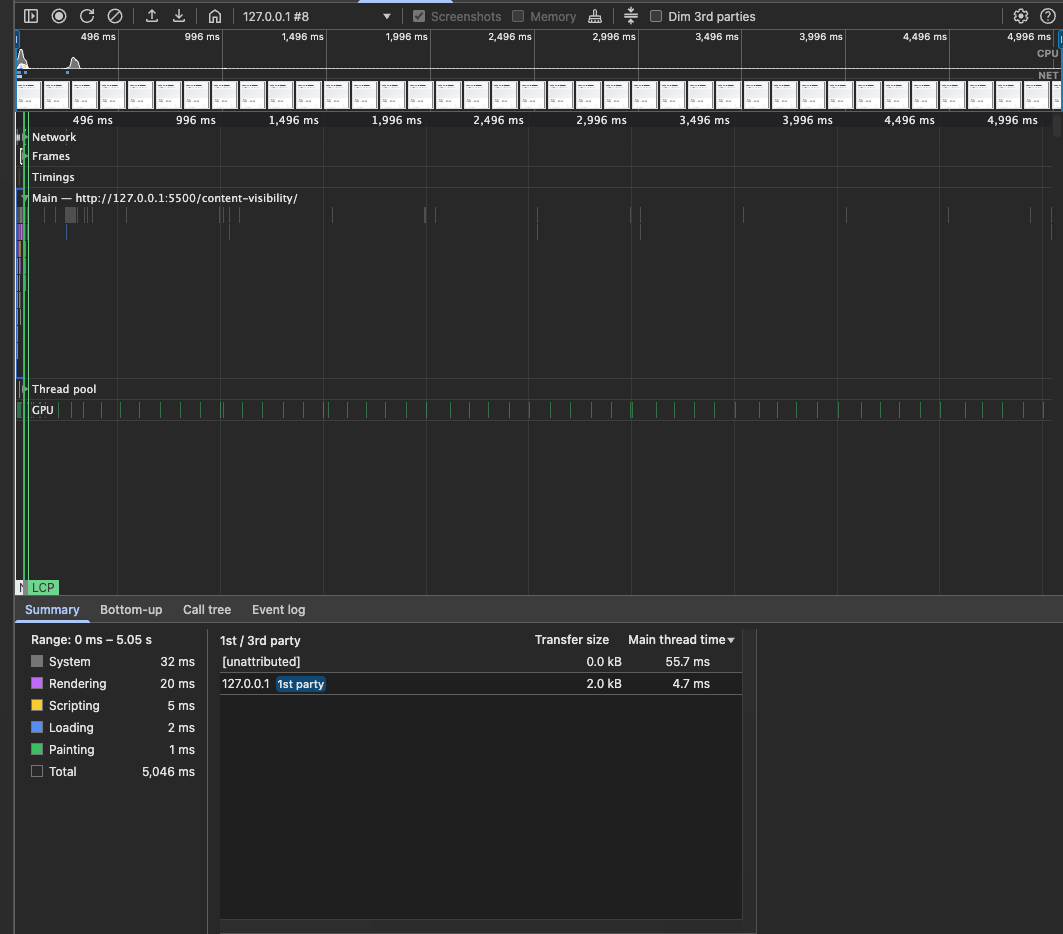
But we need to be careful with that number.
This doesn't mean content-visibility makes websites 52% faster. It doesn't even mean the entire page loaded 52% faster.
We measured one category of activity inside Chrome DevTools using one deliberately content-heavy page in one test environment.
The result will depend on things like
how much below-the-fold content you have
how expensive that content is to render
the browser
the device
the viewport
the structure of the page
Our experiment was basically designed to give content-visibility a lot of work to skip.
So the useful conclusion isn't
"
content-visibilitymakes websites 52% faster."
It's this:
On pages with substantial off-screen content, allowing the browser to skip unnecessary rendering work can produce a measurable improvement.
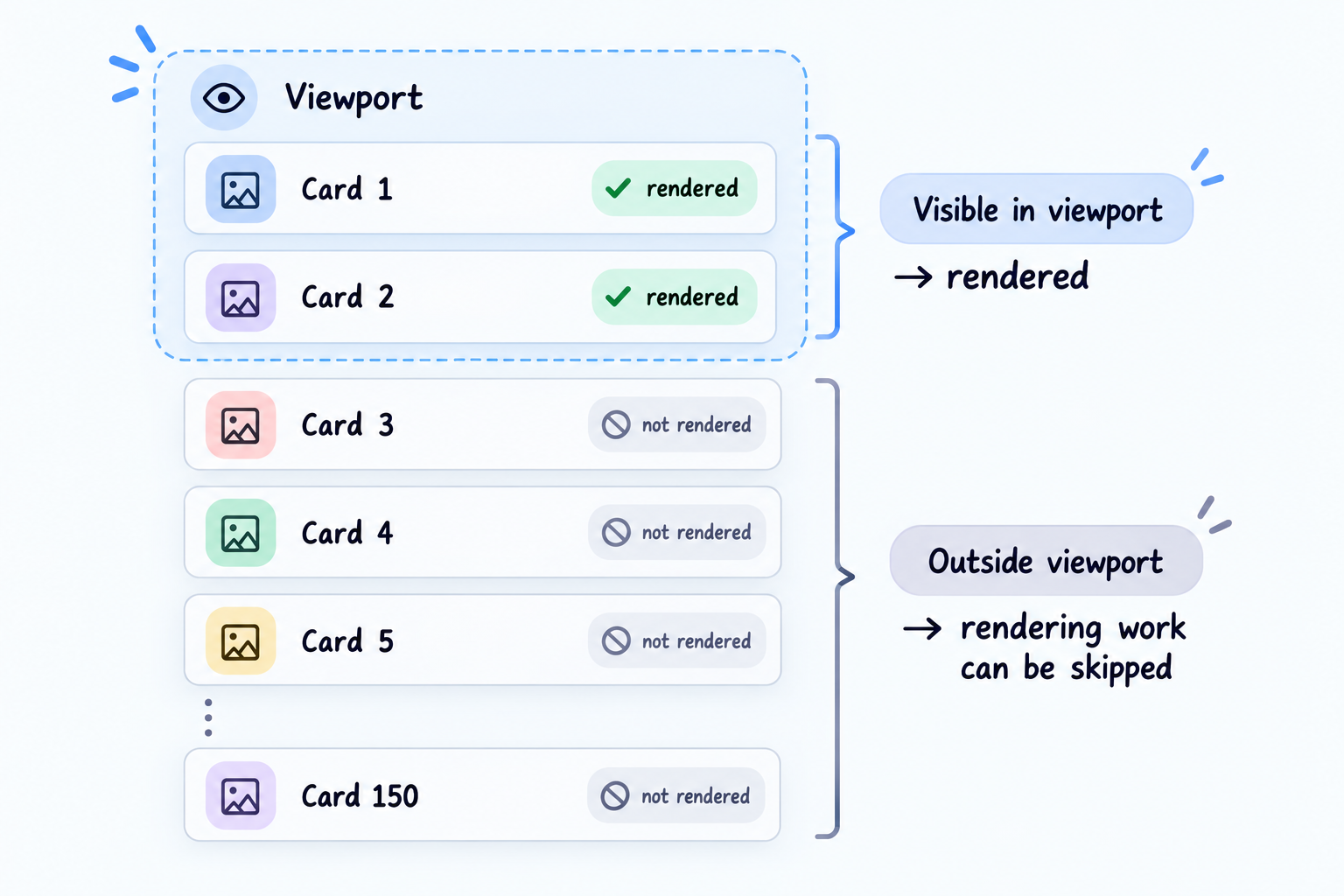
web.dev has demonstrated the same idea with its own content-heavy demo and reported a large improvement there as well.
But their number belongs to their test. Our number belongs to ours.
Neither is a percentage you should copy into your own application without measuring it.
But our experiment isn't finished yet. Because after I started scrolling, another problem appeared.
We Saved Rendering Work. Now the Layout Has a Problem.
Think about what we've just told the browser: a card is far below the viewport, so its contents can be skipped.
Fair enough. But the page still needs a layout.
So here's the awkward question: How much space should an off-screen card occupy before the browser knows its normally rendered size?
If the browser's initial geometry doesn't match the card's actual size, the layout can adjust when the card becomes relevant and its contents are rendered.
That's where contain-intrinsic-size comes in.
We can give the browser a fallback intrinsic size:
.card {
  content-visibility: auto;
  contain-intrinsic-size: auto 900px;
}
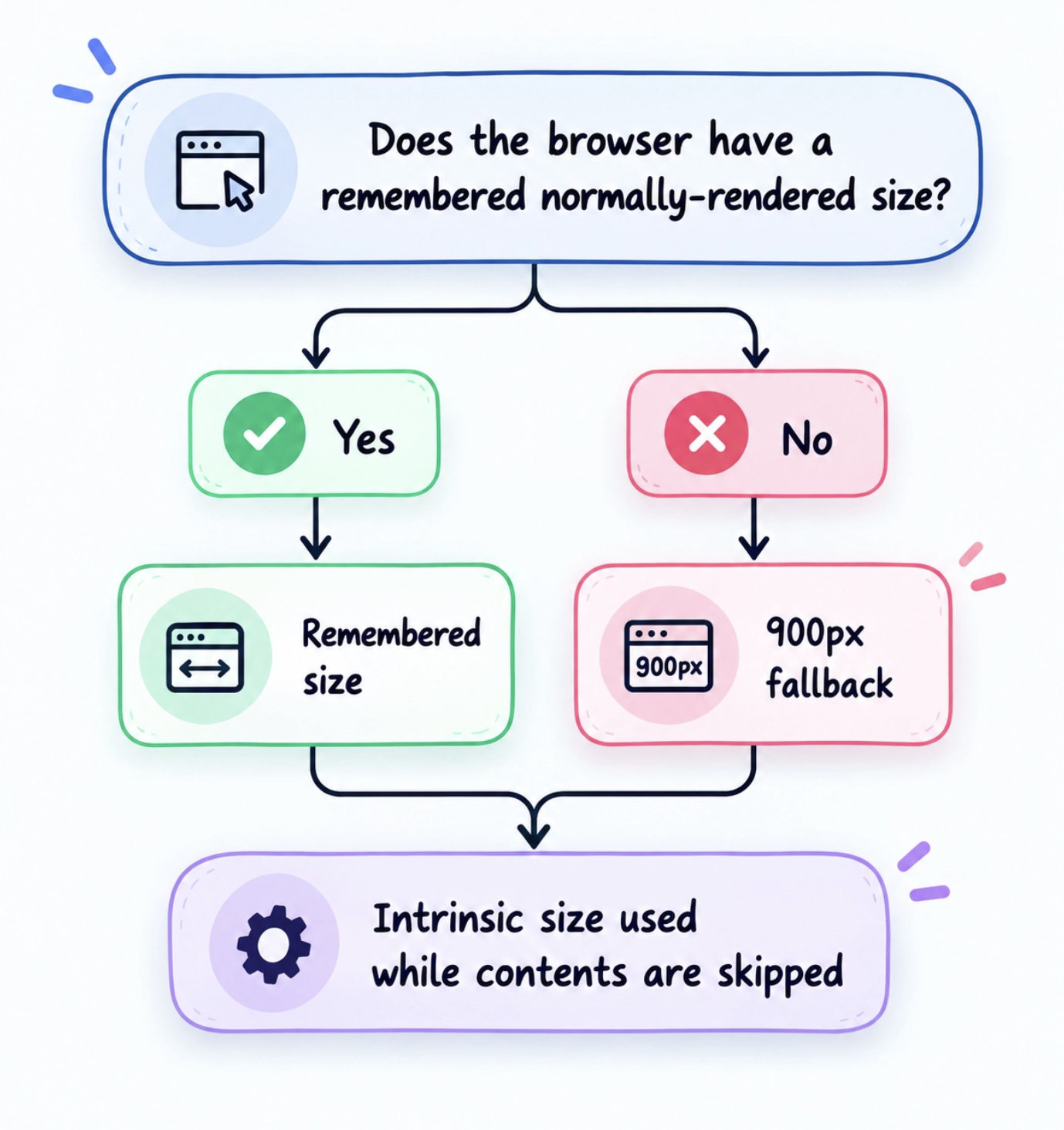
The 900px value gives the browser a fallback intrinsic size to use when the contents are skipped and no remembered rendered size is available.
But the auto part makes this more interesting.
Imagine the card hasn't been normally rendered yet. The browser doesn't have a previous size to reuse, so our 900px value can act as the fallback.
Later, the card gets close enough to the viewport and is normally rendered. Now the browser has seen its actual rendered size.
If that card becomes skippable again, the browser can reuse the remembered size instead of falling back to 900px.
So:
contain-intrinsic-size: auto 900px;
doesn't mean the browser somehow knows the card is 900px tall.
It means:
This is also useful alongside content-visibility.
If we're skipping the contents, we still need reasonable geometry for the page before those contents are rendered.
So What Should the Fallback Be?
My first question was whether choosing a smaller or larger fallback would noticeably affect the initial Rendering measurement.
So I tried three values:
| Fallback | Rendering |
|---|---|
| 100px | 12 ms |
| 900px | 10 ms |
| 2000px | 11 ms |
Those results are very close.
At this scale, the differences are small enough that I wouldn't treat them as evidence that one fallback value is faster than another.
We can't look at this and conclude:
"Smaller intrinsic sizes are faster."
We also can't conclude:
"The estimate closest to the actual size will always have the best rendering performance."
That's not really the job of the fallback.
The more useful question is what happens to the layout.
If your fallback is 100px, but the actual card turns out to be much taller, the page may need to adjust its geometry when the contents are rendered.
The opposite can happen if your fallback is much larger than the actual content.
So you want a reasonable approximation, not a magic performance number.
But while testing this, I noticed something I wasn't expecting.
With only
.card {
  content-visibility: auto;
}
I later ran three measurements:
20 ms
21 ms
20 ms

Median: 20 ms
Then I added:
.card {
  content-visibility: auto;
  contain-intrinsic-size: auto 900px;
}
And got:
10 ms
9 ms
12 ms

Median: 10 ms
So yes, in this particular experiment, adding the explicit fallback was associated with another reduction in Chrome DevTools' Rendering activity.
Tempting conclusion:
contain-intrinsic-size = 2× faster
Nope. Our measurement tells us what happened in this experiment.
It doesn't establish a general performance characteristic of contain-intrinsic-size.
Its job is to provide useful intrinsic geometry when size containment applies, including a fallback when no remembered normally rendered size is available.
There's another reason to be careful with these numbers. The original baseline comparison used three runs, while these later exploratory measurements used three runs.
That's fine for something I noticed while experimenting. It's not the controlled methodology I'd use to claim that one configuration is generally faster than another.
So the 10 ms result stays exactly what it is: an interesting observation from this experiment. Not a browser guarantee.
Did We Just Move the Work to Scrolling?
There's another question the initial-load benchmark doesn't answer.
If we're skipping work for off-screen cards, some of those cards will eventually become relevant when the user scrolls.
The work hasn't magically disappeared. Some of it has been deferred until the browser decides the content is relevant.
So did we improve the whole experience, or did we just move some work somewhere else?
I don't have a benchmark from this experiment that answers that.
I didn't record a controlled scrolling test, so I'm not going to turn what I saw while manually scrolling into another performance claim.
A separate experiment would need to look at scrolling, cards becoming relevant, layout shifts, and frame behavior while moving through the page.
For now, our measurement tells us something much narrower:
content-visibility: autoreduced the initial Rendering activity measured in this particular test.
It doesn't tell us that every part of the browsing experience became 52% faster. And that's an important boundary for the numbers we're looking at.
Wait, Isn't This Just Lazy Loading?
At this point, content-visibility can sound suspiciously similar to lazy loading.
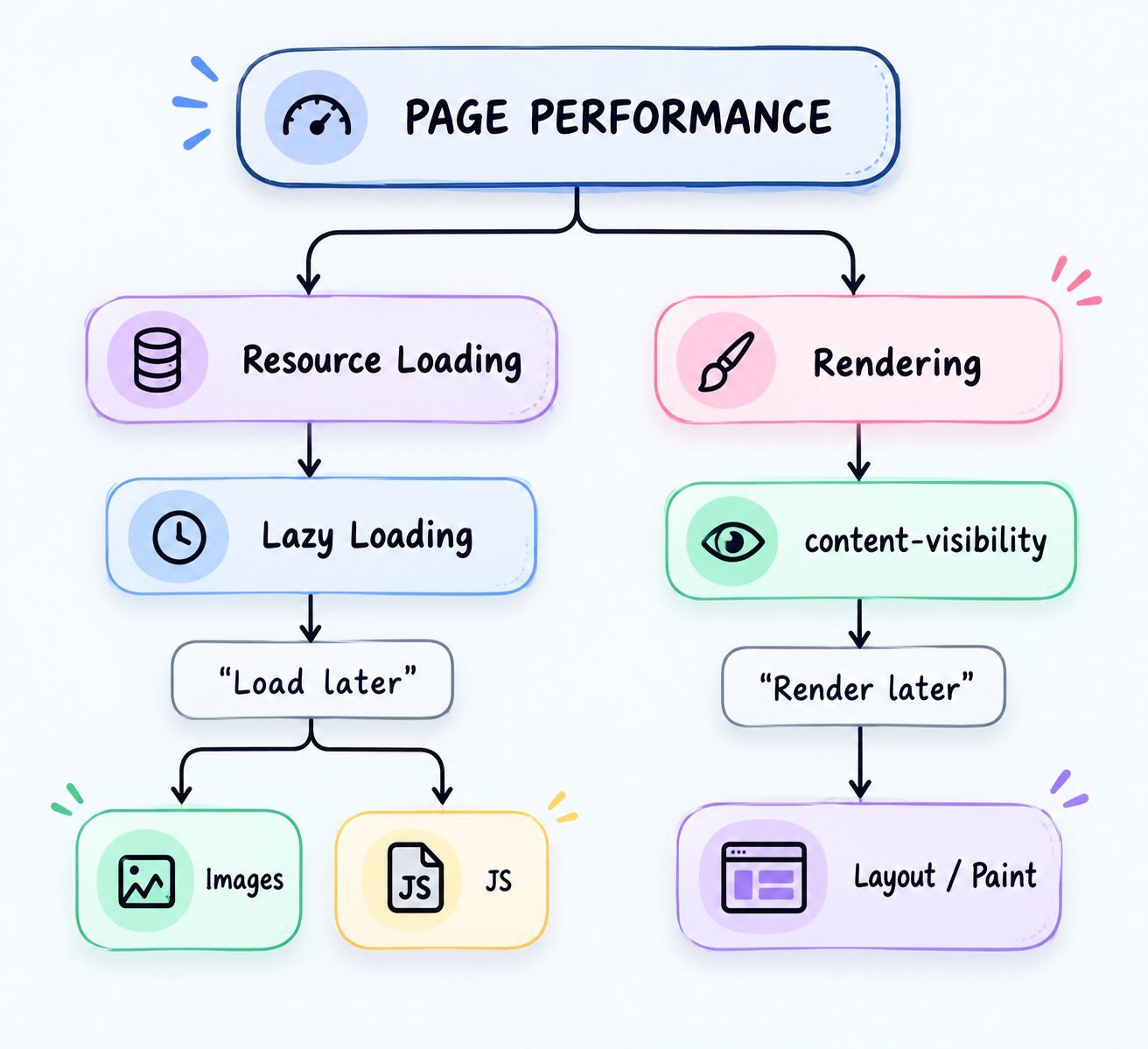
Both are trying to avoid unnecessary work. But they're generally avoiding different work.
Lazy loading is mostly asking:
Do I need to load this resource yet?
content-visibility is asking something different:
Do I need to render these contents yet?
Take an image:
<img
  src="/product.jpg"
  loading="lazy"
  alt="Black running shoes"
>
Native image lazy loading can defer loading that resource until it's closer to being needed.
But with:
.product-card {
  content-visibility: auto;
}
The element can already exist in the DOM, and its resources may already have been loaded.
We're asking the browser whether it needs to perform the rendering work for those contents yet.
So these optimizations aren't necessarily alternatives.
You could have both on the same page.
One can help avoid loading a resource too early.
The other can help avoid rendering work that isn't currently necessary.
But What About Accessibility?
There's an interesting detail about content-visibility: auto that's easy to miss.
Off-screen content whose rendering is being skipped remains in the DOM and can remain available in the accessibility tree.
That's useful for performance, but it also gives us an important boundary: content-visibility: auto is a rendering optimization. It isn't a semantic hiding mechanism.
If your goal is to hide content from assistive technologies, don't use content-visibility for that job. Use the appropriate HTML, CSS, and accessibility semantics instead.
There's also an edge case worth knowing about. web.dev points out that content inside a skipped subtree can still appear in the accessibility tree even when some of that content would normally be hidden by styles such as display: none or visibility: hidden.
So if you're applying content-visibility to complex or interactive sections, test the actual keyboard and assistive-technology experience instead of assuming a rendering optimization can't affect accessibility.
So, When Is content-visibility Actually Worth Using?
After all these measurements, the answer is less exciting than adding this one CSS property can make your website fast.
Which is probably a good sign.
content-visibility: auto becomes interesting when your page contains a meaningful amount of expensive content outside the viewport.
You can think:
long article or social feeds
large product listings
documentation pages with many sections
long dashboards
complex below-the-fold sections
If your page is small and nearly everything is visible immediately, there may simply not be much rendering work to skip.
And before using it in production, there's one practical question left: Can you rely on browser support?
For modern browsers, support is broad. content-visibility is part of Baseline 2024, so unless your project needs to support older browser versions, compatibility is much less of a concern than it used to be.
So content-visibility isn't something you need on every page. But when a page contains a lot of expensive off-screen content, it gives the browser something valuable: the option to simply not render work the user can't see yet.


