

I recently worked on a project where a Node.js application used Vite to compile its frontend. It worked in a browser-hosted development environment, but its image build failed after the move to Azure Container Registry. The build reported a missing Vite executable after an earlier dependency install had failed.
The container build ended with a simple error:
sh: 1: vite: not found
Vite already appeared in devDependencies. The build stage had run npm ci before calling the build script. The Dockerfile looked ordinary, so the first explanations all pointed at dependency selection or NODE_ENV.
The missing binary came from an earlier failure. npm ci had tried to download hundreds of tarballs from a package host that only existed inside the browser-based development environment. It printed Exit handler never called!, left node_modules empty, and didn't give Docker a clear failure status. The following layer reached npm run build and reported the first missing executable it needed.
The lockfile pointed npm at an unreachable host. This tutorial shows how to check whether the install completed, find the affected tarball URLs, and check the dependency layer before compiling the application. The repair changes the public-package URL prefix and adds build checks. Package versions, integrity values, application code, and Vite configuration stay the same.
Table of Contents
Before You Begin
You need a Node.js project with package.json, a version 2 or 3 package-lock.json, its container build log, and Docker. The example uses a supported Node 24 image and a Vite project that writes its build output to dist. Check your own dependency compatibility and output directory.
Check whether the affected packages come from a public or private registry before changing any URLs. The .invalid hostname below stands in for the original internal host. Adapt that prefix only after reviewing the packages it serves.
How the Build Reached the Failure
The application came from a browser-hosted development environment and later moved into an Azure Container Registry build. The development platform acted as a proxy for public npm packages. When it regenerated package-lock.json, it stored its own internal tarball URLs in the resolved fields.
The failure crossed two environments:
Inside the development environment, npm could reach the package proxy. The lockfile kept those proxy URLs.
The Azure Container Registry image builder received the same lockfile, but it couldn't resolve the proxy hostname.
The dependency install printed
Exit handler never called!and leftnode_modulesempty. Its failure status didn't stop the next Docker layer in this incident.The next layer ran
npm run build, which called Vite. With no installed Vite executable, the build reportedvite: not found.
The checks below follow that chain backward from the missing executable to the package locations, then repair the URLs and guard each independent install.
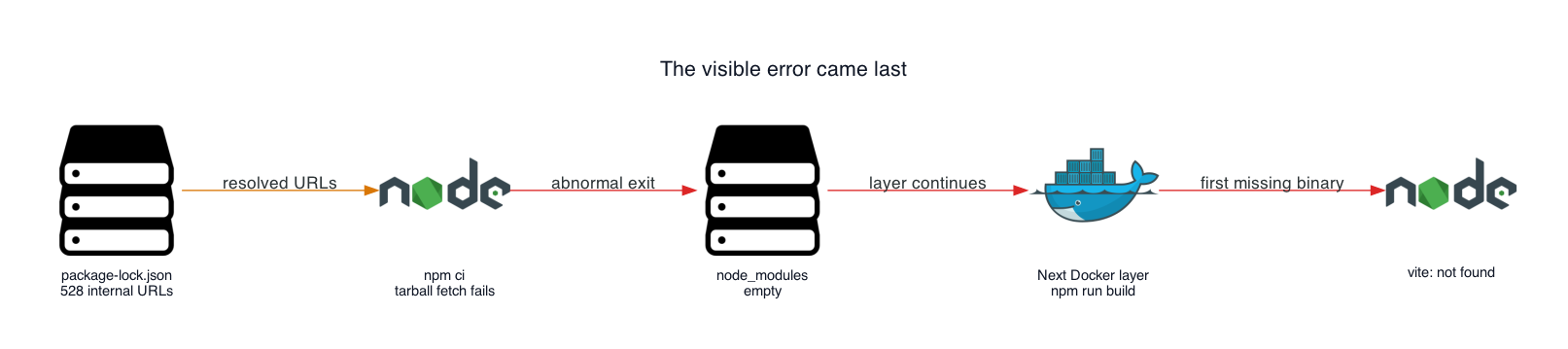
Figure 1. The container build reported the last failure in the chain.
Step 1: Check Whether npm ci Installed Anything
The project used npm ci, which was the correct command for a repeatable container build. npm's documentation says that the command removes an existing node_modules directory before it starts the install. It also treats the lockfile as frozen instead of updating it.
Those properties made this failure unusually clear. The build couldn't fall back to packages from an earlier local install. Once the tarball downloads failed, the dependency directory contained nothing useful.
The Dockerfile separated dependency installation from source compilation. Step 3 compares that original sequence with the revised build.
The later vite: not found message didn't show whether npm had installed the package. Start with the dependency directory in the same environment that failed:
test -d node_modules && find node_modules -mindepth 1 -maxdepth 1 | head
test -x node_modules/.bin/vite
In this build, the first check found no installed packages. The second confirmed that the Vite executable was missing. A missing binary can also result from omitting development dependencies, so inspect the directory before changing NODE_ENV or the package manifest.
After a successful install, the directory listing should show package names. The test -x command prints nothing. Immediately after it, inspect its exit status:
echo $?
For a missing Vite executable, the expected result is:
1
A result of 0 means the executable exists and is executable.
Checkpoint: An empty dependency directory points to the install step. If other packages exist but Vite is missing, also check whether the install omitted development dependencies. These commands inspect the dependency directory without changing it.
Step 2: Find Where the Lockfile Would Download Packages
A generalized entry looked like this:
{
  "node_modules/example-package": {
    "version": "1.2.3",
    "resolved": "http://packages.internal.invalid/npm/example-package/-/example-package-1.2.3.tgz",
    "integrity": "sha512-<subresource-integrity-value>"
  }
}
The .invalid hostname above replaces the real internal hostname. The structure matches the historical lockfile.
npm documents resolved as the location from which it obtained a package. For a registry package, that value can be a tarball URL. The configured registry on the build runner therefore didn't solve this incident. The lockfile already told npm where to fetch each tarball.
I counted the affected entries in the historical file. Of 1,038 dependency entries, 528 carried the internal hostname. Each pointed at a host that didn't resolve in the external build environment.
The npm debug output pointed to an earlier failure. The hostname failures appeared before Exit handler never called!. That order mattered. The exit-handler message described how npm ended, while the failed downloads explained why the dependency tree was empty.
I inspected the lockfile as data instead of searching for one package name. This small script groups every HTTP resolved value by hostname:
const fs = require('node:fs')
const lock = JSON.parse(fs.readFileSync('package-lock.json', 'utf8'))
const hosts = {}

for (const entry of Object.values(lock.packages ?? {})) {
  if (!entry.resolved?.startsWith('http')) continue
  const host = new URL(entry.resolved).host
  hosts[host] = (hosts[host] ?? 0) + 1
}

console.table(hosts)
That inventory showed that the problem affected 528 entries rather than one broken tarball. It also made the repair boundary clear. The package locations recorded in resolved needed to change, while versions and integrity values stayed the same. If the host list includes a private registry, stop here and identify which packages it serves before rewriting anything.
The historical inventory contained this row. The table uses the replacement hostname from the example:
| Host | Resolved URLs |
|---|---|
packages.internal.invalid |
528 |
Your hostnames and counts will depend on your lockfile. This inventory counts HTTP tarball locations, so its total can differ from the number of dependency entries.
Checkpoint: Identify the unreachable host and confirm which of its packages come from the public npm registry. Record the affected count before choosing a replacement prefix. A hostname count alone doesn't establish that rewriting those URLs is safe.
Step 3: Rewrite Only the Known Public-package URL Prefix
Regenerating the lockfile can mix a registry repair with dependency updates. Keeping the package versions and integrity values unchanged makes the repair easier to review.
The affected packages in this application came from the public npm registry. The development platform proxied them and preserved their integrity values. The historical repair replaced its URL prefix before the container install.
For this walkthrough, save the following as rewrite-lockfile.cjs. It changes only resolved fields with the approved prefix. It checks for missing integrity values and unexpected paths on the old host before writing the file.
const fs = require('node:fs')

const oldPrefix = 'http://packages.internal.invalid/npm/'
const newPrefix = 'https://registry.npmjs.org/'
const oldHostname = new URL(oldPrefix).hostname
const filename = 'package-lock.json'
const lock = JSON.parse(fs.readFileSync(filename, 'utf8'))

if (!lock.packages || typeof lock.packages !== 'object') {
  throw new Error('Expected a lockfile with a packages object (version 2 or 3)')
}

let rewritten = 0
for (const entry of Object.values(lock.packages)) {
  if (typeof entry.resolved !== 'string') continue
  if (!entry.resolved.startsWith(oldPrefix)) continue
  if (!entry.integrity) throw new Error('An affected package has no integrity value')
  entry.resolved = newPrefix + entry.resolved.slice(oldPrefix.length)
  rewritten += 1
}

for (const entry of Object.values(lock.packages)) {
  if (typeof entry.resolved !== 'string') continue
  if (!entry.resolved.startsWith('http')) continue
  if (new URL(entry.resolved).hostname === oldHostname) {
    throw new Error('The old hostname remains under an unexpected URL prefix')
  }
}

fs.writeFileSync(filename, JSON.stringify(lock, null, 2) + '\n')
console.log(`Rewrote ${rewritten} resolved URLs`)
When the dependency stage runs the script, its message should match the number of URLs that use the approved prefix. The small test project used to check this tutorial produced:
Rewrote 40 resolved URLs
That test project is separate from the historical application, which had 528 affected entries. Use the inventory for your own file as the expected count. A zero count on an already-repaired file is expected. If an unrepaired file produces zero, check the prefix.
The script doesn't establish that a package is public. Confirm that separately. npm's integrity check then verifies that the downloaded bytes match the lockfile.
Keep local dependencies and configuration files out of the build context with a .dockerignore:
node_modules
dist
.git
.env*
.npmrc
This example installs public packages. A private registry needs its own reachable endpoint and secure build-time authentication.
The first block below shows the affected instructions from the original Dockerfile. The second is the complete tutorial build. It uses Node 24 and the guarded install, so check compatibility with your own application.
Before: Original Install and Build Sequence
COPY package.json package-lock.json ./
RUN npm ci

COPY . .
RUN npm run build
After: URL Rewrite and Dependency Checks
Use two build stages so source changes don't invalidate the dependency-install stage:
FROM node:24-slim AS dependencies
WORKDIR /app

COPY package.json package-lock.json rewrite-lockfile.cjs ./
RUN node rewrite-lockfile.cjs \
 && npm ci --include=dev \
 && test -x node_modules/.bin/vite

FROM node:24-slim AS build
WORKDIR /app

COPY . .
COPY --from=dependencies /app/node_modules ./node_modules
COPY --from=dependencies /app/package-lock.json ./package-lock.json
RUN npm run build
The revised Dockerfile makes each part of the install explicit:
The URL rewrite replaces the approved public-package prefix before
npm cidownloads packages.--include=devmakes the choice to install development dependencies explicit.The Vite executable check stops the dependency stage if the install leaves Vite missing.
The separate dependency stage installs packages before the application build stage copies them and compiles the source.
The second stage copies the repaired lockfile after the application source. Otherwise, COPY . . would put the original lockfile back into the build image. The .dockerignore also prevents local node_modules from overwriting the dependencies from the first stage.
--include=dev includes Vite when it's a development dependency, even if the build environment sets NODE_ENV=production. This image is a build environment, so it needs the compiler and build tools. Choose a supported Node version compatible with your project.
The historical lockfile comparison found 528 changed fields, all named resolved. It found zero changed version or integrity fields and no remaining internal hostname. The example script above also leaves unrelated fields unchanged, although JSON formatting can change.
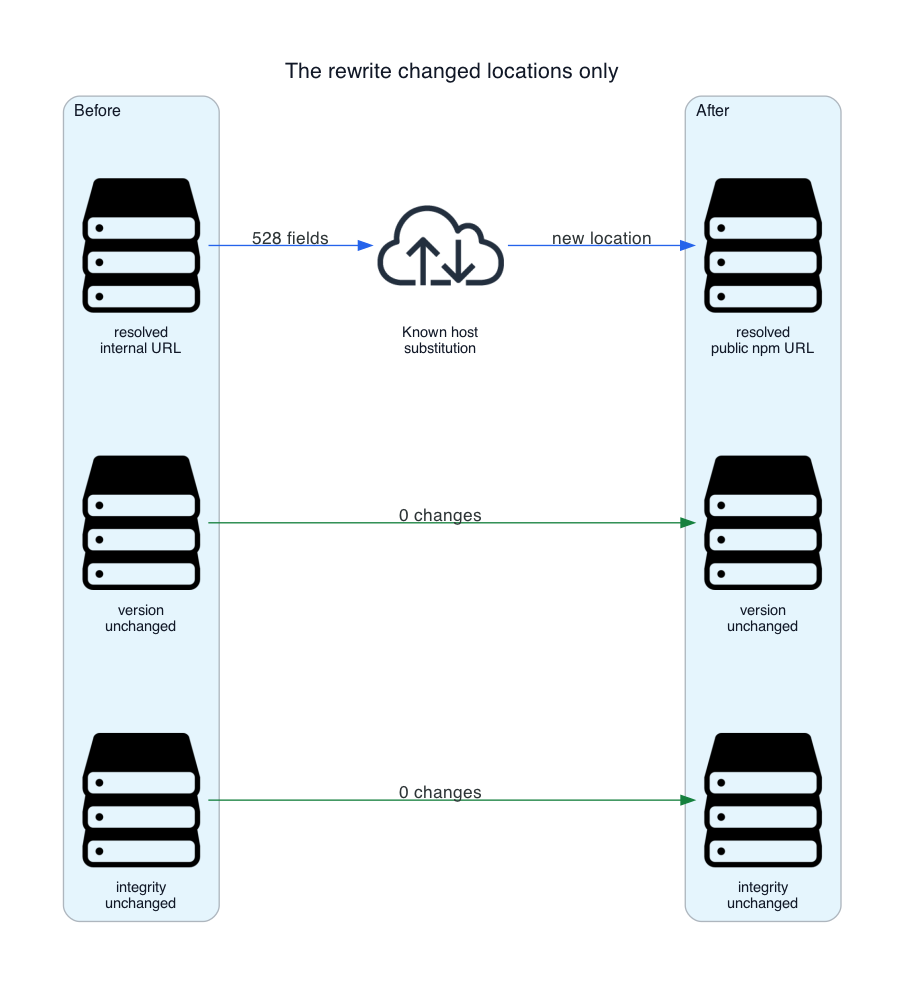
Figure 2. The portability repair changes package locations while preserving dependency identity.
The executable check makes the dependency stage fail if Vite is still missing. Docker stops at that stage instead of reaching the application build.
Checkpoint: Check the rewrite count against your inventory, confirm that the approved old hostname is gone, and compare versions and integrity values before and after the repair. The dependency stage must complete both npm ci --include=dev and the Vite executable check. Step 5 builds the image and verifies the application output.
Step 4: Apply the Guard at Every Independent Install
The continuous integration job and the container image builder ran separate installs. Fixing the workflow runner didn't change the npm ci inside the Dockerfile. The image build received the original repository files and created its own dependency layer in another environment.
The rewrite belongs immediately after the dependency files enter the install environment. Docker's cache guidance recommends installing dependencies before copying frequently changing source files. In the example, the dependency stage has that boundary. A source-only change rebuilds the application stage.
Apply the same guard before each independent install:
the continuous integration type-check install
the container build install
any runtime-stage install in a multi-stage Dockerfile
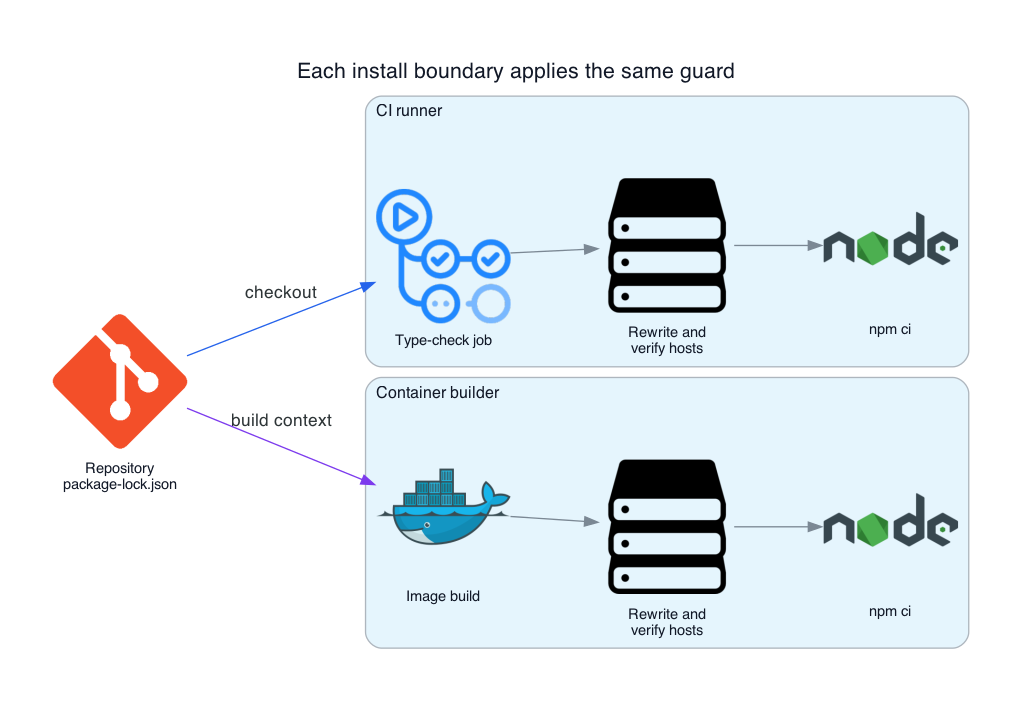
Figure 3. A workflow repair doesn't automatically repair the install inside a container build.
This placement also prevented a misleading partial fix. A type check could otherwise pass while the image build failed because the two jobs used the same lockfile in separate installs.
Step 5: Verify the Dependency Tree and the Trust Boundary
This repair was safe because the affected entries represented public npm packages behind a transparent development-platform proxy. The integrity strings remained present, and the rewrite didn't change any package version.
The same substitution would be unsafe for private packages, patched packages, or a registry that serves different bytes under the same package version. A portable build should keep those packages on a reachable private registry and configure authentication for that registry.
Before applying this pattern elsewhere, I would inventory every resolved hostname and separate public packages from private ones. I would then compare package versions and integrity values before and after the change. The build should fail if an unapproved hostname remains.
An npm CLI issue records the same Exit handler never called! message after package downloads from an internal registry timed out. That message doesn't identify the package location by itself. In this incident, the tarball URLs and failed hostname established the cause.
Build the image and verify the output:
docker build --progress=plain -t vite-install-check .
docker run --rm vite-install-check sh -c \
  'test -x node_modules/.bin/vite && test -s dist/index.html'
The build must pass npm ci, the Vite executable check, and npm run build. The final command checks the expected Vite output in the resulting image. Adapt the output check if your project uses a different directory. The image in this example compiles the application. Choose a separate serving stage if you need a production web server.
A successful minimal example doesn't validate every dependency in an existing application. Run the same build against the project you intend to ship. When a tool is missing, check the install result and its earlier errors before changing the build tool.

