
Whether you're writing an essay, a tweet, or a blog post, keeping track of your word and character count is very important.
In this tutorial, you'll build a fully functional, real-time Word Counter tool from scratch. You'll use HTML for the structure, CSS for a clean design, and vanilla JavaScript to handle the counting logic.
Because this tool runs completely in the browser, it works instantly as you type and keeps your text data completely private.
Let's get started.
Prerequisites
To follow this guide easily, you should have:
A basic understanding of HTML tags and CSS styling.
Familiarity with JavaScript concepts like functions, event listeners, and basic Regular Expressions (Regex).
A code editor (like VS Code) and a web browser.
Table of Contents
Step 1: Set Up Your Project
First, you need to set up your workspace. Create a new folder on your computer and name it word-counter-app.
Inside this folder, create three empty files:
index.htmlstyle.cssscript.js
Step 2: Build the HTML Structure
Open your index.html file. You need to create a layout that includes a header, a grid to display the real-time statistics, a text area for the user to type in, and buttons to copy or clear the text.
Add the following code into your HTML file:
<!DOCTYPE html>
<html lang="en">
<head>
    <meta charset="UTF-8">
    <meta name="viewport" content="width=device-width, initial-scale=1.0">
    <title>Word Counter Tool</title>
    <link rel="stylesheet" href="style.css">
</head>
<body>

    <header class="header-section">
        <h1>Word Counter</h1>
        <p class="description">Paste or type your text below to get a real-time count of words, characters, sentences, and paragraphs.</p>
    </header>

    <main class="tool-container">

        <!-- Statistics Panel -->
        <div class="stats-grid">
            <div class="stat-box">
                <div class="stat-value" id="wordCount">0</div>
                <div class="stat-label">Words</div>
            </div>
            <div class="stat-box">
                <div class="stat-value" id="charCount">0</div>
                <div class="stat-label">Characters</div>
            </div>
            <div class="stat-box">
                <div class="stat-value" id="sentenceCount">0</div>
                <div class="stat-label">Sentences</div>
            </div>
            <div class="stat-box">
                <div class="stat-value" id="paragraphCount">0</div>
                <div class="stat-label">Paragraphs</div>
            </div>
        </div>

        <!-- User Input Area -->
        <textarea id="textInput" placeholder="Start typing or paste your text here..."></textarea>

        <!-- Action Buttons -->
        <div class="controls">
            <button class="btn-primary" onclick="copyText()" id="copyBtn">Copy Text</button>
            <button class="btn-secondary" onclick="clearText()">Clear</button>
        </div>

    </main>

    <script src="script.js"></script>
</body>
</html>
Understanding the HTML:
The
.stats-grid: This holds four separate boxes to show the counts. Each number has a uniqueid(likewordCount) so JavaScript can find and update it easily.The
<textarea>: This is the main input box where users will type or paste their content.The
<script>tag: This connects your HTML to the logic you will write in the next steps.
Step 3: Style the Tool with CSS
Next, you'll give your tool a modern, professional look. You'll use CSS Grid to align the statistics boxes perfectly.
Open your style.css file and add this code:
:root {
    --primary-color: #007bff;
    --bg-color: #f8f9fa;
    --text-dark: #202124;
    --text-muted: #5f6368;
    --border-color: #dadce0;
    --panel-bg: #ffffff;
}

body {
    font-family: -apple-system, BlinkMacSystemFont, "Segoe UI", Roboto, Helvetica, Arial, sans-serif;
    background-color: var(--bg-color);
    color: var(--text-dark);
    margin: 0;
    padding: 40px 20px;
    display: flex;
    flex-direction: column;
    align-items: center;
}

.header-section {
    text-align: center;
    margin-bottom: 30px;
}

h1 {
    font-size: 2.5rem;
    margin: 0 0 10px 0;
    font-weight: 800;
}

p.description {
    color: var(--text-muted);
    max-width: 600px;
    margin: 0 auto;
    line-height: 1.6;
    font-size: 1.1rem;
}

.tool-container {
    background-color: var(--panel-bg);
    border: 1px solid var(--border-color);
    border-radius: 12px;
    padding: 24px;
    width: 100%;
    max-width: 900px;
    box-shadow: 0 4px 12px rgba(0,0,0,0.05);
}

/* Stats Grid */
.stats-grid {
    display: grid;
    grid-template-columns: repeat(auto-fit, minmax(150px, 1fr));
    gap: 16px;
    margin-bottom: 24px;
}

.stat-box {
    background-color: var(--bg-color);
    border: 1px solid var(--border-color);
    border-radius: 8px;
    padding: 16px;
    text-align: center;
}

.stat-value {
    font-size: 2rem;
    font-weight: 700;
    color: var(--primary-color);
    margin-bottom: 4px;
}

.stat-label {
    font-size: 0.9rem;
    color: var(--text-muted);
    text-transform: uppercase;
    letter-spacing: 0.5px;
    font-weight: 600;
}

/* Text Area */
textarea {
    width: 100%;
    height: 250px;
    padding: 16px;
    border: 1px solid var(--border-color);
    border-radius: 8px;
    font-size: 1rem;
    line-height: 1.6;
    resize: vertical;
    box-sizing: border-box;
    font-family: inherit;
    margin-bottom: 20px;
    transition: border-color 0.2s ease;
}

textarea:focus {
    outline: none;
    border-color: var(--primary-color);
}

/* Buttons */
.controls {
    display: flex;
    gap: 12px;
}

button {
    padding: 10px 20px;
    font-size: 1rem;
    font-weight: 600;
    border-radius: 6px;
    cursor: pointer;
    border: none;
    transition: background-color 0.2s ease;
}

.btn-primary {
    background-color: var(--primary-color);
    color: #ffffff;
}

.btn-primary:hover {
    background-color: #0056b3;
}

.btn-secondary {
    background-color: transparent;
    color: var(--text-dark);
    border: 1px solid var(--border-color);
}

.btn-secondary:hover {
    background-color: var(--bg-color);
}
Understanding the CSS:
CSS Grid: The
.stats-gridclass usesgrid-template-columns: repeat(auto-fit, minmax(150px, 1fr));. This makes the four stat boxes automatically stack neatly on top of each other if a user views the tool on a small mobile screen.CSS Variables: Using
:rootat the top allows you to quickly change the brand color later if you want to use something other than the default blue (#007bff).
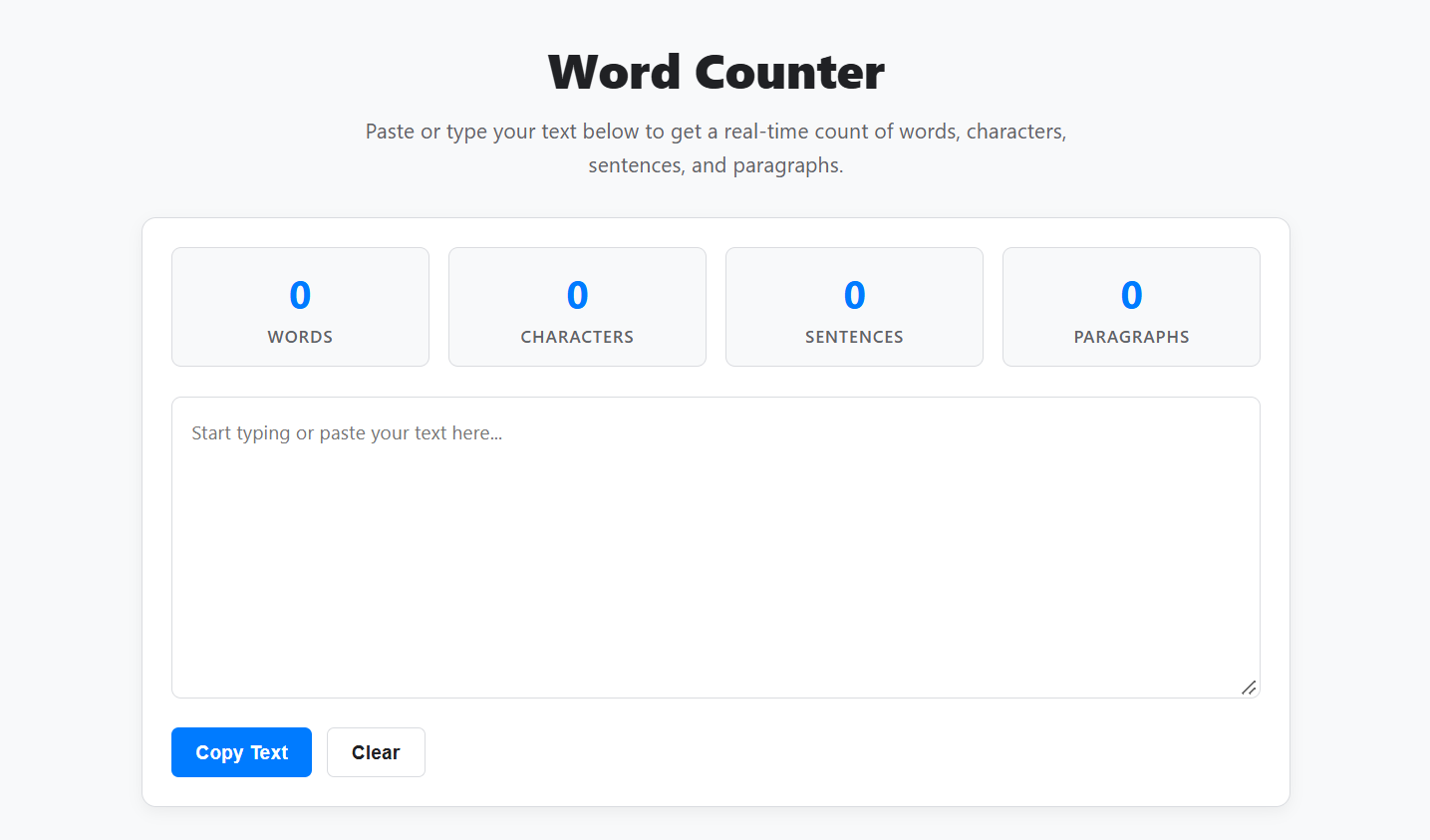
At this point, the visual design of your tool is complete. Here's what the final Word Counter will look like in your browser:
Step 4: Add the JavaScript Logic
Now you need to make the tool count the text. You'll use an event listener that watches every keystroke. Every time the user types, it recalculates the words, characters, sentences, and paragraphs.
Open your script.js file and paste this code:
const textInput = document.getElementById('textInput');
const wordCountDisplay = document.getElementById('wordCount');
const charCountDisplay = document.getElementById('charCount');
const sentenceCountDisplay = document.getElementById('sentenceCount');
const paragraphCountDisplay = document.getElementById('paragraphCount');
const copyBtn = document.getElementById('copyBtn');

// 1. Listen for user input in real-time
textInput.addEventListener('input', updateStatistics);

// 2. The Core Counting Logic
function updateStatistics() {
    const text = textInput.value;

    // Character Count (includes spaces)
    charCountDisplay.textContent = text.length;

    // Word Count
    const words = text.match(/\S+/g) || [];
    wordCountDisplay.textContent = words.length;

    // Sentence Count
    const sentences = text.split(/[.!?]+(?=\s|$)/).filter(sentence => sentence.trim().length > 0);
    sentenceCountDisplay.textContent = sentences.length;

    // Paragraph Count
    const paragraphs = text.split(/\n+/).filter(paragraph => paragraph.trim().length > 0);
    paragraphCountDisplay.textContent = paragraphs.length;
}

// 3. Copy functionality
function copyText() {
    if (!textInput.value) return;

    textInput.select();
    document.execCommand('copy');

    // Provide visual feedback
    copyBtn.textContent = 'Copied!';
    setTimeout(() => {
        copyBtn.textContent = 'Copy Text';
    }, 1500);
}

// 4. Clear functionality
function clearText() {
    textInput.value = '';
    updateStatistics(); // Reset counts to zero
}
Understanding the JavaScript:
The
inputEvent:textInput.addEventListener('input', ...)is the secret to real-time updates. It triggers the counting function the exact moment a key is pressed or text is pasted.Counting Words:
text.match(/\S+/g)is a Regular Expression that looks for unbroken strings of non-whitespace characters. This is much more accurate than just splitting the text by spaces, because it ignores extra empty spaces left by mistake.Counting Sentences: The
.split(/[.!?]+(?=\s|$)/)logic cuts the text into pieces every time it sees a period, exclamation mark, or question mark followed by a space.
Step 5: Test Your Application
You're completely done coding! Now it's time to verify that your logic works correctly.
Open your
word-counter-appfolder.Double-click the
index.htmlfile to open it in your web browser.Type a few sentences into the text area. Watch the numbers at the top update instantly.
Try adding double spaces or hitting the "Enter" key to make new paragraphs, and ensure the logic counts them accurately.
Click Copy Text to test the clipboard feature, and Clear to reset the board.
By completing this project, you've built a fast, client-side utility tool using pure vanilla JavaScript. You learned how to manipulate strings, use Regular Expressions for text analysis, and create responsive UI grids.
If you want to see this exact codebase running in a live production environment, you can try out this Online Word Counter. Keep building, and happy coding!


