

Data analysis might sound complicated when you first encounter it. You might imagine large databases, advanced mathematics, and complicated machine learning algorithms.
But many useful data analysis tasks start with something much simpler: loading a dataset, asking questions about it, and using Python to find the answers.
In this tutorial, you'll build a simple data analyzer using Python and pandas. You'll work with a fictional student performance dataset and learn how to load data, inspect it, calculate statistics, filter records, group information, and create a basic visualization.
By the end, you'll have a reusable foundation for analyzing many types of CSV datasets.
Prerequisites
Before following this tutorial, you should have a few basic Python skills and tools ready. You don't need advanced programming or data analysis experience, but you should be familiar with:
- Python variables and basic data types, such as strings and numbers.
- Importing libraries and calling functions.
- Working with lists and basic operations on data.
If you're new to Python, consider learning these fundamentals before continuing. Here's an interactive Python course to get you started if you want to go deep.
Also, make sure you have the following installed:
- Python: Python 3 or a compatible Python installation.
- pandas: The Python library we'll use to load, filter, group, and analyze data.
- Matplotlib: The library we'll use to create visualizations.
- A code editor or IDE: Such as VS Code, PyCharm, or a simple text editor, along with access to a terminal.
You can install pandas and Matplotlib by running the following command in your terminal:
pip install pandas matplotlib
You'll also need a folder where you can save your Python script and the students.csv dataset we'll create in this tutorial.
Once everything is ready, you can start analyzing data with Python!
What We'll Cover:
- Setting Up Your Environment
- Creating the Dataset
- Loading the Dataset with Pandas
- Exploring the Data
- Calculating Basic Statistics
- Filtering Data
- Finding Specific Students
- Grouping Data
- Analyzing Study Time
- Creating a Visualization
- Building the Complete Analyzer
- Making the Analyzer More Reusable
- Handling Missing Data
- Exporting Results
- Common Mistakes to Avoid
- Where to Go From Here
- Final Thoughts
Setting Up Your Environment
Installing pandas
If you don't already have pandas installed, open your terminal and run:
pip install pandas matplotlib
We'll use pandas for data analysis and Matplotlib for a simple visualization.
You can verify the installation with:
import pandas as pd
import matplotlib.pyplot as plt

print(pd.__version__)
If Python prints a version number, you're ready to go.
Creating the Dataset
Creating a CSV File
We'll start by creating a file called students.csv and adding some data.
The dataset we'll be working with here is fictional and contains 12 student records across grades 9 through 12. Each row represents one student, and each column describes a different attribute:
name: The student's first name.grade: The student's current grade level in school.study_hours: The number of hours the student studied.attendance: The student's attendance percentage.score: The student's test score, recorded on a 0–100 scale.
For example, Ava is in grade 9, studied for 4.5 hours, has 95% attendance, and received a test score of 82. These sample records let us explore questions such as whether study time is associated with test scores and how average scores compare across grade levels.
Because the data is fictional and small, any patterns we observe are only illustrative, and we shouldn't treat them as evidence about students in general.
But our data will give us enough information to perform several useful analyses. Here it is:
name,grade,study_hours,attendance,score
Ava,9,4.5,95,82
Liam,9,6.0,98,91
Sophia,10,3.5,89,76
Noah,10,7.0,99,94
Emma,11,5.5,93,88
Oliver,11,8.0,97,96
Mia,12,4.0,91,79
Ethan,12,6.5,96,90
Isabella,9,7.5,100,97
Lucas,10,2.5,85,68
Amelia,11,6.0,94,92
James,12,5.0,90,84
Loading the Dataset with Pandas
Reading the CSV File
Start your Python program by importing pandas:
import pandas as pd
Then load the CSV file:
data = pd.read_csv("students.csv")
The read_csv() function reads the CSV file and converts it into a pandas DataFrame.
A DataFrame is a table-like data structure with rows and columns. You can think of it as a programmable spreadsheet.
Let's display the dataset:
print(data)
You should see the student records printed in your terminal.
Exploring the Data
Before analyzing a dataset, it's useful to understand what you're working with.
Viewing the First Rows
The head() method displays the first five rows:
print(data.head())
You can also specify how many rows you want:
print(data.head(3))
Checking the Dataset Size
Use shape to find the number of rows and columns:
print(data.shape)
The result will be:
(12, 5)
That means our dataset contains 12 rows and 5 columns.
Examining Column Names
You can view the column names with:
print(data.columns)
This is useful when you need to reference columns later in your program.
Checking Data Types
Use info() to see information about each column:
data.info()
This helps you identify whether columns contain integers, decimal numbers, text, or other types of data.
Calculating Basic Statistics
Pandas makes it easy to calculate statistics without manually writing the mathematical formulas.
Finding the Average Score
We can calculate the average score using:
average_score = data["score"].mean()

print(f"Average score: {average_score:.2f}")
The mean() method calculates the arithmetic average.
The :.2f formatting tells Python to display the result with two decimal places.
Finding the Highest and Lowest Scores
Use max() and min():
highest_score = data["score"].max()
lowest_score = data["score"].min()

print(f"Highest score: {highest_score}")
print(f"Lowest score: {lowest_score}")
You can also find the median:
median_score = data["score"].median()

print(f"Median score: {median_score}")
The median is the middle value when the scores are ordered.
Generating a Statistical Summary
Pandas also provides a convenient describe() method:
print(data["score"].describe())
This produces statistics such as:
- Count
- Mean
- Standard deviation
- Minimum
- 25th percentile
- Median
- 75th percentile
- Maximum
You can generate a summary for all numerical columns:
print(data.describe())
This is often one of the first commands you'll use when exploring an unfamiliar dataset.
Filtering Data
One of the most useful features of pandas is the ability to select rows based on conditions.
Finding Students With High Scores
Suppose we want to find students who scored at least 90:
high_scores = data[data["score"] >= 90]

print(high_scores)
The expression:
data["score"] >= 90
creates a Boolean condition for every row. Pandas then keeps only the rows where that condition is True.
Finding Students Who Study More Than Five Hours
We can perform the same operation using study time:
frequent_studiers = data[data["study_hours"] > 5]

print(frequent_studiers)
You can combine multiple conditions as well.
For example, suppose we want students who study more than five hours and have an attendance rate above 95 percent:
students = data[
    (data["study_hours"] > 5) &
    (data["attendance"] > 95)
]

print(students)
When combining conditions in pandas, use & for AND and | for OR. Each condition should be enclosed in parentheses.
Finding Specific Students
Using idxmax()
Sometimes you don't just want the highest value. You want to know which record contains it.
For example:
top_student_index = data["score"].idxmax()
top_student = data.loc[top_student_index]

print(top_student)
idxmax() returns the index of the row containing the largest value.
We can do the same for study hours:
most_studious_index = data["study_hours"].idxmax()
most_studious_student = data.loc[most_studious_index]

print(most_studious_student)
This lets you connect a statistic back to the original record.
Grouping Data
Grouping becomes particularly useful when your dataset contains categories.
In our dataset, students belong to different grades.
Average Score by Grade
We can calculate the average score for each grade:
average_by_grade = data.groupby("grade")["score"].mean()

print(average_by_grade)
This tells us how the average score differs between grades.
We can make the output easier to read:
average_by_grade = (
    data.groupby("grade")["score"]
    .mean()
    .round(2)
)

print(average_by_grade)
Multiple Statistics
You can calculate several statistics at once:
grade_summary = data.groupby("grade")["score"].agg(
    ["mean", "min", "max", "count"]
)

print(grade_summary)
This produces a summary for each grade containing the average, minimum, maximum, and number of students.
Analyzing Study Time
We can also investigate the relationship between study hours and scores.
Calculating Correlation
Pandas provides a corr() method:
correlation = data["study_hours"].corr(data["score"])

print(f"Correlation: {correlation:.2f}")
The correlation value generally ranges from -1 to 1.
A value closer to 1 indicates a stronger positive linear relationship, while a value closer to -1 indicates a stronger negative linear relationship. A value near 0 indicates little linear relationship.
However, correlation does not prove that one variable causes another. For example, if study hours and scores are correlated in this dataset, that doesn't prove that studying more directly caused higher scores.
Creating a Visualization
Numbers are useful, but visualizations can make patterns easier to recognize.
Creating a Scatter Plot
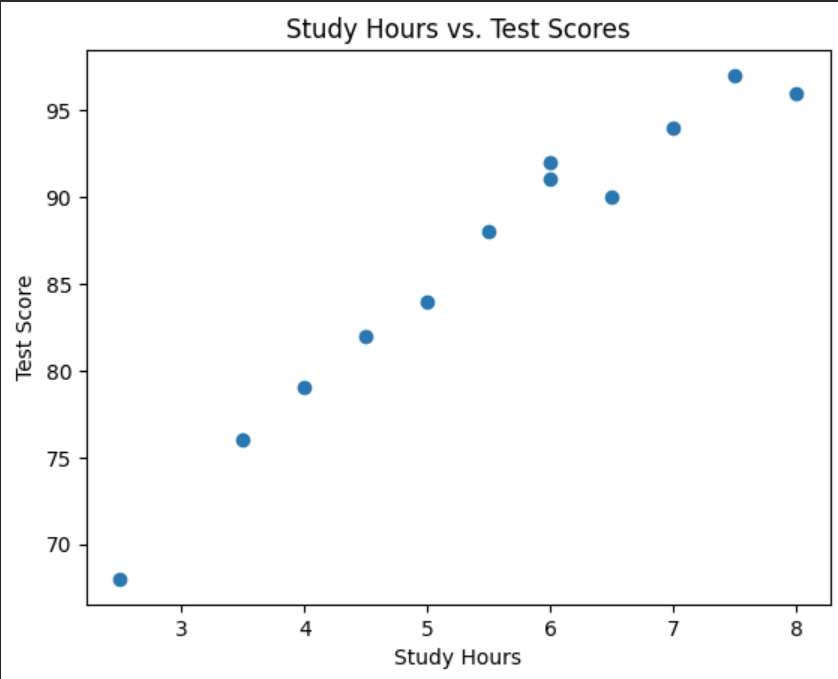
We'll create a scatter plot showing study hours and test scores:
import matplotlib.pyplot as plt

plt.scatter(data["study_hours"], data["score"])

plt.xlabel("Study Hours")
plt.ylabel("Test Score")
plt.title("Study Hours vs. Test Scores")

plt.show()
Each point represents one student.
The x-axis represents study hours, while the y-axis represents test scores.
You may notice whether the points appear to generally move upward as study time increases.
This is what it should look like:
Creating a Bar Chart
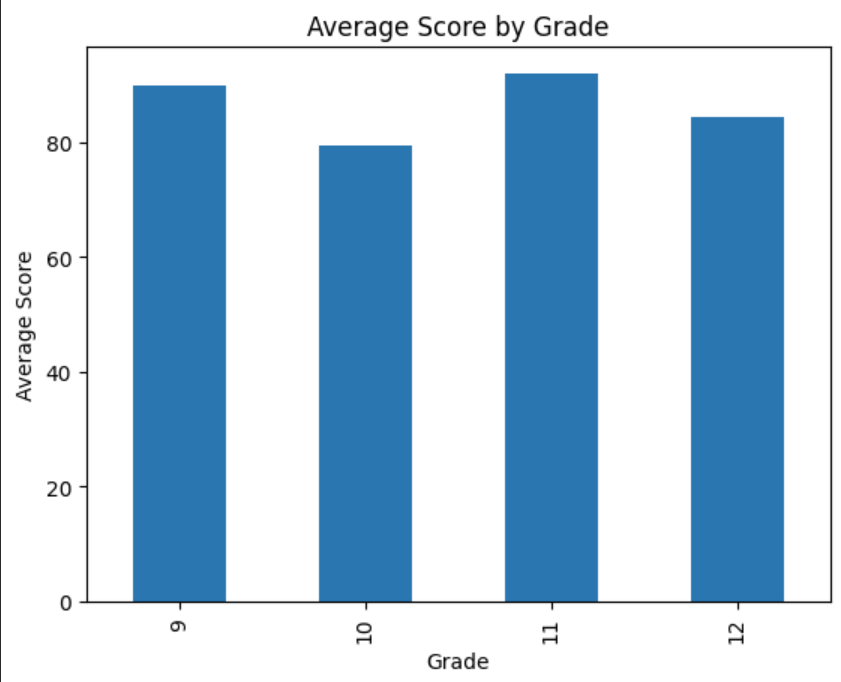
We can also visualize the average score for each grade:
average_by_grade = data.groupby("grade")["score"].mean()

average_by_grade.plot(kind="bar")

plt.xlabel("Grade")
plt.ylabel("Average Score")
plt.title("Average Score by Grade")

plt.show()
A bar chart makes it easier to compare the averages between groups.
This is what the bar chart should look like:
Building the Complete Analyzer
Now let's combine the main ideas into one program.
import pandas as pd
import matplotlib.pyplot as plt

# Load the dataset
data = pd.read_csv("students.csv")

# Basic information
print("Dataset shape:")
print(data.shape)

print("\nFirst five rows:")
print(data.head())

# Score statistics
average_score = data["score"].mean()
median_score = data["score"].median()
highest_score = data["score"].max()
lowest_score = data["score"].min()

print("\nScore Statistics")
print(f"Average: {average_score:.2f}")
print(f"Median: {median_score:.2f}")
print(f"Highest: {highest_score}")
print(f"Lowest: {lowest_score}")

# Students with scores of 90 or higher
high_scores = data[data["score"] >= 90]

print("\nStudents with scores of 90 or higher:")
print(high_scores[["name", "score"]])

# Average score by grade
average_by_grade = (
    data.groupby("grade")["score"]
    .mean()
    .round(2)
)

print("\nAverage Score by Grade:")
print(average_by_grade)

# Study hours and score correlation
correlation = data["study_hours"].corr(data["score"])

print(f"\nStudy Hours vs. Score Correlation: {correlation:.2f}")

# Scatter plot
plt.scatter(data["study_hours"], data["score"])

plt.xlabel("Study Hours")
plt.ylabel("Test Score")
plt.title("Study Hours vs. Test Scores")

plt.show()
This program now performs a small but complete data analysis workflow.
Making the Analyzer More Reusable
A useful next step is turning repeated operations into functions.
Creating an Analysis Function
Instead of writing everything directly in the main program, we can create a function:
def analyze_scores(data):
    average = data["score"].mean()
    median = data["score"].median()
    highest = data["score"].max()
    lowest = data["score"].min()

    print(f"Average score: {average:.2f}")
    print(f"Median score: {median:.2f}")
    print(f"Highest score: {highest}")
    print(f"Lowest score: {lowest}")
Then call it with:
analyze_scores(data)
This makes the code easier to reuse with another DataFrame.
Creating a Function for Top Students
We can also create a function that returns the highest-scoring students:
def get_top_students(data, minimum_score=90):
    return data[data["score"] >= minimum_score][
        ["name", "grade", "score"]
    ]
Now we can change the threshold whenever we want:
print(get_top_students(data, 95))
Functions like these become especially valuable when your analyzer grows.
Handling Missing Data
Real-world datasets are rarely as clean as our example. You may encounter missing values sometimes.
You can check for missing values with:
print(data.isnull().sum())
This tells you how many missing values exist in each column.
For example, you could remove rows containing missing values with:
clean_data = data.dropna()
Or, depending on the dataset and what the missing value means, you might replace missing values:
data["score"] = data["score"].fillna(data["score"].mean())
You should not automatically replace every missing value with an average. The appropriate approach depends on what the missing data represents and what you're trying to analyze.
Exporting Results
After analyzing a dataset, you may want to save your results.
For example:
average_by_grade.to_csv("average_scores_by_grade.csv")
You can also save filtered records:
high_scores.to_csv("high_scoring_students.csv", index=False)
The index=False argument prevents pandas from adding the DataFrame's index as an extra column.
Common Mistakes to Avoid
Forgetting to Import Libraries
Make sure the required libraries are imported:
import pandas as pd
import matplotlib.pyplot as plt
Otherwise, Python won't know what pd or plt means.
Using the Wrong Column Name
Column names must match your dataset.
For example, if the column is called study_hours, this won't work:
data["study time"]
You can always check the actual column names with:
print(data.columns)
Confusing Correlation With Causation
A correlation can identify a relationship between variables, but it doesn't establish that one variable caused another.
This distinction becomes increasingly important as you work with larger and more complicated datasets.
Analyzing Before Understanding the Data
It's tempting to immediately calculate statistics. But first inspect the dataset.
Useful starting commands include:
data.head()
data.shape
data.info()
data.describe()
data.isnull().sum()
Understanding the structure and quality of your data helps prevent incorrect conclusions.
Where to Go From Here
The analyzer you've built is intentionally simple, but the same workflow can be applied to much larger datasets.
You could extend it to:
- Analyze sales data
- Track website traffic
- Study survey responses
- Analyze marketing campaigns
- Examine sports statistics
- Explore financial datasets
- Track application or customer data
You could also add more advanced features such as interactive charts, command-line arguments, automated reports, or machine learning models.
For example, instead of hard-coding the CSV filename, you could let the user provide one:
filename = input("Enter the CSV filename: ")

data = pd.read_csv(filename)

print(data.head())
Now the same program can analyze different CSV files.
Final Thoughts
You don't need complicated algorithms to start working with data. With Python, pandas, and a relatively small dataset, you can already perform meaningful analysis.
In this tutorial, you learned how to:
- Load CSV data with pandas
- Explore a DataFrame
- Calculate statistics
- Filter rows
- Find specific records
- Group data
- Calculate correlations
- Create visualizations
- Handle missing values
- Export analysis results
- Organize analysis with functions
The most important next step is to practice with different datasets. Once you're comfortable loading, exploring, cleaning, and analyzing data with pandas, you can start building much more sophisticated data-analysis projects.
Happy coding!


