
Every time you open a web page, you leave a trail. Your browser shares your IP address, your screen size, your fonts, and dozens of other small details. Ad companies collect these details and stitch them together. The result is a profile of who you are, what you buy, and where you go.
The good news is that you don't need to be a security expert to fix this. Most of the work takes an afternoon. After that, privacy becomes a habit rather than a project. This guide walks through the steps in the order that gives you the biggest gain for the least effort.
In this article, you'll learn how to improve your online privacy without making browsing complicated. We'll cover the most important steps, from choosing a privacy-friendly browser and blocking trackers to using a VPN, securing your search history and DNS, and cleaning up your online accounts.
You'll also learn what these tools can and can't protect, so you can build a practical privacy setup that works for everyday browsing.
What We'll Cover:
Start With Your Browser
Your browser is the front door. If it leaks, nothing else matters much.
Chrome is fast, but it belongs to an advertising company. Firefox and Brave block trackers by default and are built with privacy in mind. Safari also does a decent job on Apple devices.
If you want to switch, Firefox is the easiest move. It imports your bookmarks and saved passwords in a couple of clicks.
If you stay with Chrome, change a few settings. Turn off third-party cookies. Turn off the ad topics feature, which lets Chrome guess your interests and share them with sites.
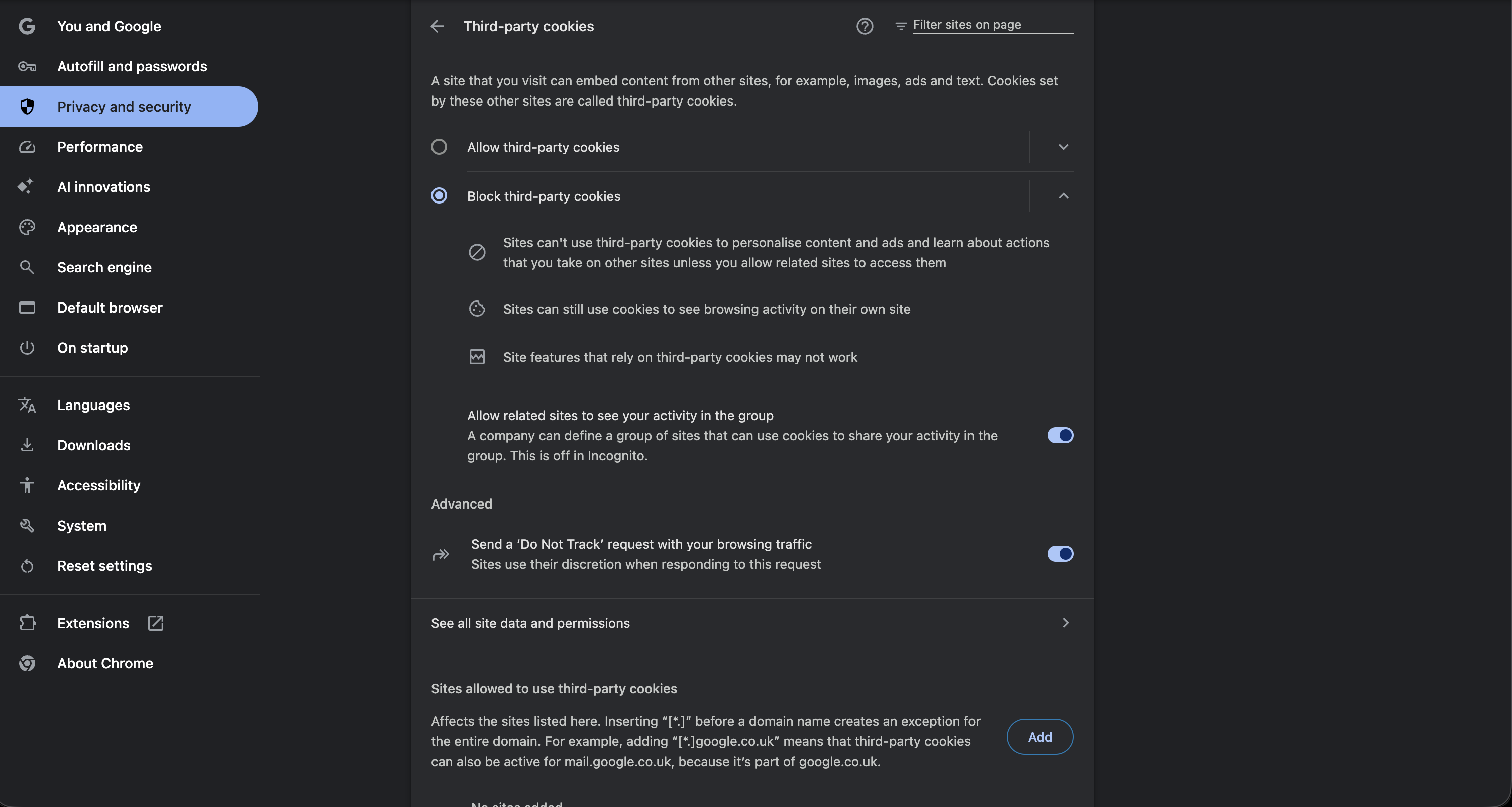
Set your browser to clear cookies when you close it. You'll sign in to sites more often, but trackers will lose their memory of you every day.
Also check what your browser is telling the world right now. The Electronic Frontier Foundation runs a free test called Cover Your Tracks. It shows you how unique your browser looks to a tracking company.
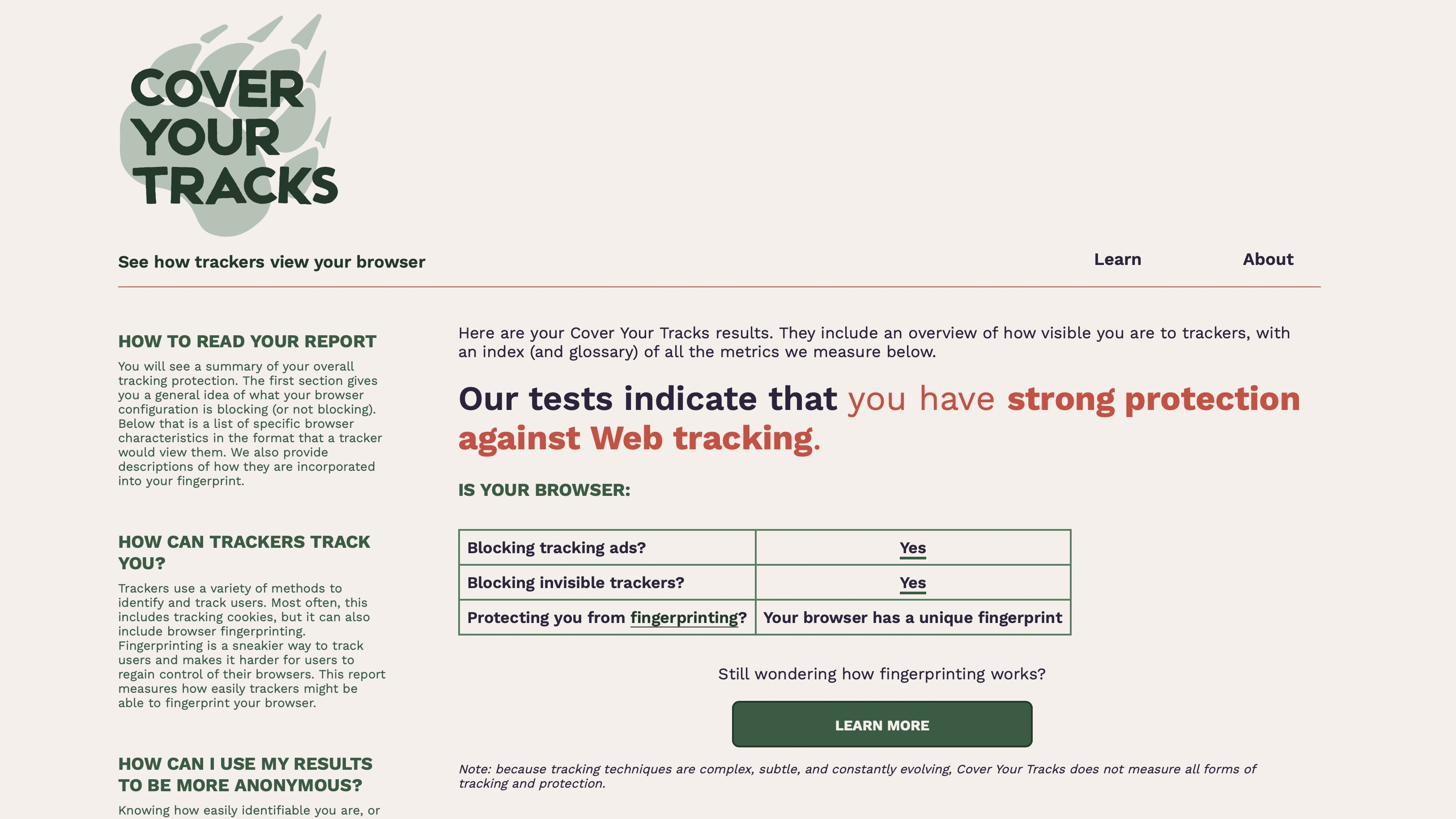
Run it before you make changes, then run it again after. The difference is a good reality check.
Block Trackers and Ads
Most tracking happens through scripts loaded from other companies. A page may look like one site, but it can quietly load code from ten different firms.
A content blocker stops those scripts before they run. uBlock Origin is the best-known free option and works in Firefox. It blocks ads too, which makes pages load faster and use less data. Privacy Badger, also from the EFF, takes a different approach. It watches which companies follow you across sites and blocks the ones that do.
Don't install multiple blockers at once. Two is plenty. More than that causes broken pages and slow browsing, and the extra protection is small.
Be careful about which extensions you trust. An extension can read everything on every page you visit. Stick to well-known tools with a clear privacy policy and a long track record. If an extension is free, tiny, and asks for wide permissions, skip it.
Hide Your IP Address With a VPN
Blocking trackers helps, but your internet provider still sees every site you visit. In many countries, providers are allowed to sell that data. Public Wi-Fi at a hotel or airport is worse, because other people on the network may be watching, too.
A virtual private network fixes this. It wraps your traffic in an encrypted tunnel and sends it through a server run by the VPN company. Your provider sees only that you connected to the VPN. Websites see the VPN server's address instead of yours.
If you want protection only inside your browser, a browser extension is the simplest route. The CyberGhost Chrome add-on is one example. It routes your Chrome traffic through an encrypted proxy, lets you pick a country, and blocks some trackers along the way. Anything outside Chrome, like a mail client or a game, still uses your normal connection. That's fine for casual privacy and it keeps your other apps fast.
One warning about free VPNs: running servers costs money. If a VPN is free and shows no clear business model, your data may be the product. Pick a paid service with a published no-logs audit, or use a free plan from a company you already trust.
Fix Your Search and DNS
Your search history is the most personal thing you own. It holds your health worries, your money problems, and your plans.
Google keeps that history tied to your account unless you tell it not to. Visit My Activity and set auto-delete to three months. While you're there, look at what has been saved. Most people find the amount surprising.
You can also switch your default search engine. DuckDuckGo and Startpage don't build a profile from your searches. Results are good enough for daily use, and you can still fall back to Google when you need it.
Then there's DNS, the system that turns a web address into a number your computer can reach. By default your provider handles this, so it sees every domain you visit even when the traffic itself is encrypted. Switching to an encrypted DNS service such as Cloudflare's 1.1.1.1 takes about two minutes and closes that gap. Most browsers now have a setting for secure DNS, so you may not even need to touch your system settings.
Clean Up Your Accounts
Privacy isn't only about traffic. It's also about the data already sitting on other people's servers.
Start by finding out where your details have leaked. The free site Have I Been Pwned tells you which breaches include your email address. If your address shows up in an old breach, change that password right away, and change it anywhere else you reused it.
Reused passwords are the single biggest risk most people carry. A password manager solves it. It creates a long random password for every site and remembers them all for you. Turn on two-factor authentication for your email, your bank, and any account tied to money. Email matters most, because whoever controls your email can reset everything else.
Finally, use different email addresses for different parts of your life. Many providers let you create aliases. One address for banking, one for shopping, and one for newsletters. When an alias starts getting spam, you know exactly who sold your data, and you can shut it off without changing your real address.
Know What Each Step Can't Do
It helps to be clear about limits, so you don't feel safer than you are.
A VPN hides your traffic from your provider, but it doesn't hide you from a site you log in to. If you sign in to a social network, that network knows it's you no matter which country your traffic seems to come from.
Blocking trackers reduces profiling, but browser fingerprinting can still identify you through your unique mix of settings. Only tools like the Tor Browser, which makes everyone look the same, defeat that fully. Tor is slower, so most people save it for the moments that really matter.
And nothing protects information you hand over yourself. If you post your holiday plans in public, no setting will pull them back.
A Simple Plan
If you only do three things, do these. Install a good content blocker, turn on a password manager and two-factor authentication, and use a VPN whenever you're on a network you don't control.
Then set a reminder for six months from now. Check your breach report, review the extensions you've installed, and delete the accounts you no longer use. Privacy isn't a wall you build once. It's closer to housekeeping. A little attention now and then keeps the mess from piling up, and it costs far less than cleaning up after your data has already escaped.
Hope you enjoyed this article. You can connect with me on LinkedIn.


