

Structured data has always mattered to search engines. When a search engine reads your page, it sees HTML: a heading, some paragraphs, a date somewhere, a name somewhere else.
Structured data tells it directly what those pieces are. This page is an article, this is its headline, this person wrote it, and it was published on this date.
For me, search engine optimization isn't a box to tick at the end. I want the products and sites I build to be found, and to be understood correctly when they are.
That's why I add structured data to every page where it makes sense. And I think it's becoming more relevant, not less, as AI systems start answering questions from web content.
In a Next.js app, nothing writes that data for you. You add it yourself, as a small block of JSON in the pages that need it.
In this tutorial, you'll learn what structured data is and how JSON-LD works. Then you'll add it to a Next.js App Router project: a reusable JsonLd component that's safe to use with any data, organization and article data built from the same content the page renders, and a check that validates all of it after every build.
Table of Contents
Prerequisites
To follow along, you'll need:
A Next.js app that uses the App Router and TypeScript. The code in this article was tested with Next.js 16.4.0 and React 19.3.
Basic familiarity with Server Components and dynamic routes.
The
schema-dtspackage, which gives you TypeScript types for structured data.
Install schema-dts as a development dependency, since it only provides types:
npm install -D schema-dts
The examples use a blog. Wherever you see getPost(), use your own data source: a CMS, a database, or Markdown files.
Structured Data Basics for Developers
If you've never worked with structured data, this section gives you just enough to understand the code that follows.
What Structured Data and JSON-LD Are
Structured data is a machine-readable description of what a page is about. Instead of leaving a search engine to work out that "Jane Doe" is the author and "2026-09-01" is the publication date, you state it in a format a program can read without guessing.
The words you use come from Schema.org, a shared vocabulary of types (like Article, Person and Organization) and their properties (like headline, author and datePublished). It was started by Google, Microsoft, Yahoo and Yandex, and it's the vocabulary search engines expect.
JSON-LD (JavaScript Object Notation for Linked Data) is one way to write that data. It's a W3C standard, and on a web page it lives in a script tag with its own type:
<script type="application/ld+json">
  { "@context": "https://schema.org", "@type": "Article", "headline": "..." }
</script>
The browser doesn't run this script. A type that isn't JavaScript turns the tag into what the HTML standard calls a data block, "not processed by the user agent, but instead by author script or other tools."
There are two other formats, Microdata and RDFa, which add attributes to your existing HTML elements. Google supports all three, but it recommends JSON-LD "if your site's setup allows it." For a React developer, JSON-LD is also the natural fit: it's a plain object you build from data, separate from the JSX that renders the page.
How a JSON-LD Block Is Built
Here's a JSON-LD block for a blog post:
{
  "@context": "https://schema.org",
  "@type": "BlogPosting",
  "headline": "How Caching Works in Next.js",
  "datePublished": "2026-09-01T09:00:00.000Z",
  "author": {
    "@type": "Person",
    "name": "Jane Doe"
  },
  "publisher": {
    "@type": "Organization",
    "@id": "https://example.com/#organization",
    "name": "Example Dev Blog"
  }
}
The keys that start with @ are JSON-LD keywords. The rest are Schema.org properties:
@contextsays which vocabulary the names come from. For Schema.org, it'shttps://schema.org.@typesays what kind of thing this is.BlogPostingis a more specific kind of Schema.orgArticle.headline,datePublishedandauthorare properties of that type. A property can hold text, a date, a URL, or another typed object, like thePersoninauthor.@idgives a thing a unique name, usually a URL with a#fragment. Here, it marks the publisher as the same organization that another block, on the home page, describes with the same@id.
You'll use all four in the code that follows.
Structured Data, JSON-LD, Schema.org, and Rich Results
These four terms get mixed up a lot, so here's how they relate:
| Term | What it is |
|---|---|
| Structured data | The idea: a machine-readable description of a page |
| Schema.org | The vocabulary: the types and properties you can use |
| JSON-LD | The format: how you write that description into the page |
| Rich results | A Google Search feature: enhanced results, like a breadcrumb trail or a product's price and rating, that structured data can make a page eligible for |
In short, you write structured data in JSON-LD, using the Schema.org vocabulary, and Google may use it to show a rich result.
What Structured Data Does for Search (and What It Doesn't)
Google says it uses structured data "to understand the content of the page," and to gather information about the people, books, and companies the markup describes. It also uses it to decide whether a page is eligible for rich results.
Eligible is the important word. Valid JSON-LD doesn't guarantee a rich result, for four reasons:
Each rich result has its own required properties, listed in Google's documentation for that feature. Markup can be valid Schema.org and still miss them.
Google decides whether to show the feature. Its structured data guidelines say: "Google does not guarantee that your structured data will show up in search results, even if your page is marked up correctly."
The markup has to describe content that's visible on the page. The same guidelines say: "Don't mark up content that is not visible to readers of the page."
Some types no longer produce a rich result at all. Google stopped showing FAQ rich results on May 7, 2026, and How-to rich results in 2023.
Structured data isn't a ranking boost, either. As Google's John Mueller put it in 2025: "Structured data won't make your site rank better."
What about AI search? Google says there's "no special schema.org structured data that you need to add" to appear in its AI features. Bing's webmaster guidelines say structured data "may support clearer grounding but does not guarantee visibility." OpenAI, Anthropic, and Perplexity don't document using it: their crawler documentation covers crawler access, not markup.
There's a lot of hype around AI search right now, and some of it is justified. But my reasoning doesn't depend on any one company's promise.
I want my content to be as understandable as possible to every system that reads it, whether that's a search engine or an AI tool. Structured data is a clear, accurate description of a page, and that's worth having whoever reads it. Just don't treat it as a trick for getting into AI answers.
How common is it in practice? In the State of Websites 2026 report from Greadme (the website audit tool I build), 63% of 387 audited homepages had structured data. Most of it was well formed: 91% of those sites passed validation with no errors.
But 16% of them still declared FAQPage, a type whose rich result Google had limited to government and health sites in 2023 and has since retired. Valid isn't the same as useful.
How to Build a Safe JsonLd Component
The Next.js JSON-LD guide recommends rendering structured data "as a <script> tag in your layout.js or page.js components." You could paste that tag into every page that needs it. A small component is better, because it keeps the escaping and the types in one place.
Create components/JsonLd.tsx:
import type { Graph, Thing, WithContext } from "schema-dts";

type JsonLdData = WithContext<Thing> | Graph;

export function serializeJsonLd(data: JsonLdData): string {
  return JSON.stringify(data).replace(/</g, "\\u003c");
}

export function JsonLd({ data }: { data: JsonLdData }) {
  return (
    <script
      type="application/ld+json"
      dangerouslySetInnerHTML={{ __html: serializeJsonLd(data) }}
    />
  );
}
Here's what each part does:
JsonLdDatacomes fromschema-dts.WithContext<Thing>accepts any single Schema.org type with its@context, andGraphaccepts a block that holds several. You'll use both.serializeJsonLdturns the object into a string and replaces every<with\u003c. The sections below explain why.dangerouslySetInnerHTMLwrites that string into the tag exactly as it is. The name sounds alarming, but you control the string, and the escape is what makes it safe to include data from anywhere.
The component has no "use client" directive, so it's a Server Component, and the tag is part of the HTML the server sends.
Why Not next/script
Next.js has a Script component, and some tutorials use it for JSON-LD. Don't. The JSON-LD guide explains that next/script "is optimized for loading and executing JavaScript," while JSON-LD is data.
The bigger problem shows up in the HTML. With the default afterInteractive strategy, Script content is "injected into the HTML client-side". I built a page that renders a Product block through Script and checked the HTML that next build produced.
There was no application/ld+json tag in it. The data existed only inside the JavaScript payload that React reads in the browser.
Google can still find it, because it reads JSON-LD that JavaScript injects into the page. But any tool that reads only the HTML sees nothing. A plain <script> puts the data in the HTML for everyone.
Why the Escape Matters
Here's the short version: JSON.stringify gives you valid JSON, but not JSON that's safe to put inside HTML. The browser doesn't know your script contains JSON. It looks for the text </script> to find where the tag ends, and it stops there, even in the middle of a JSON string.
Say a product name comes from a CMS, and someone saves this as the name:
Blue Mug </script><script>alert(document.cookie)</script>
With plain JSON.stringify, the server sends this:
<script type="application/ld+json">{"@context":"https://schema.org","@type":"Product","name":"Blue Mug </script><script>alert(document.cookie)</script>"}</script>
The browser ends the JSON-LD tag at the first </script>. Then it finds a second, ordinary script tag and runs it. That's a cross-site scripting (XSS) attack, and your structured data is now broken JSON as well.
I ran that page through jsdom, which parses HTML the way the HTML standard specifies. The alert ran once, and JSON.parse on the JSON-LD failed with "Unterminated string in JSON."
With the escape, the same value becomes:
<script type="application/ld+json">{"@context":"https://schema.org","@type":"Product","name":"Blue Mug \u003c/script>\u003cscript>alert(document.cookie)\u003c/script>"}</script>
There's no </script> left for the browser to find. \u003c is JSON's own escape for <, so any JSON parser reads it back as the original character. In the same test, nothing ran, and JSON.parse returned the exact name the CMS stored.
You don't need an attacker for this to break a page. The HTML standard also lists <!-- and <script as sequences that confuse the parser inside a script tag.
In my test, a value containing <!--<script> made the unescaped tag swallow the rest of the page, and the heading after it disappeared from the DOM. With the escape, the page rendered normally.
That's why the Next.js guide recommends replacing < with \u003c. The guide itself only added that advice in May 2025, and many tutorials still use plain JSON.stringify. If your JSON-LD includes anything you didn't type yourself, like titles, descriptions, product names, or reviews, escape it.
Why One Component
I usually build a component when I notice several places doing the same thing. I want one central place that owns that behavior, so a change or a fix happens once instead of in every copy.
JSON-LD is a good example, because the escape is one line and easy to forget. In a production codebase I maintain, structured data was rendered in nine places.
Seven of them escaped <. Two didn't, and one of those was the component that rendered the structured data for every blog article.
Nothing broke. The article descriptions it handled contain tags like <body> and <video>, which can't end a script tag, and none of them contained </script or <!--.
But that was luck, not a decision. Whether a page was protected depended on which file you opened.
Moving every block into one JsonLd component fixed that for good. The escape, the choice of a plain <script> over next/script, and the types now live in one place. Every call site gets type checking from the prop type, and serializeJsonLd can be tested on its own.
How to Add Organization and WebSite Data to the Home Page
Start with the data that describes your site as a whole: the organization behind it and the website itself. Google recommends placing organization data "on your home page, or a single page that describes your organization," and adds: "You don't need to include it on every page of your site."
The examples below use two constants for the site's name and address. Put them wherever you keep your configuration:
// lib/site.ts
export const SITE_URL = "https://example.com";
export const SITE_NAME = "Example Dev Blog";
Then render both types from the home page, app/page.tsx:
import type { Graph } from "schema-dts";
import { JsonLd } from "@/components/JsonLd";
import { SITE_NAME, SITE_URL } from "@/lib/site";

const siteJsonLd: Graph = {
  "@context": "https://schema.org",
  "@graph": [
    {
      "@type": "Organization",
      "@id": `${SITE_URL}/#organization`,
      name: SITE_NAME,
      url: SITE_URL,
      logo: `${SITE_URL}/logo.png`,
    },
    {
      "@type": "WebSite",
      "@id": `${SITE_URL}/#website`,
      name: SITE_NAME,
      url: SITE_URL,
      publisher: { "@id": `${SITE_URL}/#organization` },
    },
  ],
};

export default function HomePage() {
  return (
    <main>
      <JsonLd data={siteJsonLd} />
      <h1>{SITE_NAME}</h1>
      {/* The rest of your home page */}
    </main>
  );
}
@graph holds several things in one block that share a single @context. That's why this object is typed as Graph instead of WithContext<...>.
Each item has an @id, and the WebSite's publisher refers to the Organization by that @id instead of repeating it. Inside one block, a reference with only an @id is enough, because the full definition is right next to it.
You might be tempted to put this in the root layout instead, so it appears everywhere. In the App Router, anything you render in a layout is part of every page under it.
That isn't wrong, but it adds the same block to every page, which Google says you don't need. Use a layout for structured data only when the data really describes every page below it.
How to Add Article and Breadcrumb Data to a Dynamic Route
Article pages are where structured data earns its keep, and where it most often goes stale. The rule that prevents both problems: build the JSON-LD from the same data the page renders, and mark up only what the reader can see.
Here's a complete app/blog/[slug]/page.tsx:
import Image from "next/image";
import Link from "next/link";
import { notFound } from "next/navigation";
import type { BlogPosting, BreadcrumbList, WithContext } from "schema-dts";
import { JsonLd } from "@/components/JsonLd";
import { getAllPosts, getPost } from "@/lib/posts";
import { SITE_NAME, SITE_URL } from "@/lib/site";

export async function generateStaticParams() {
  const posts = await getAllPosts();
  return posts.map((post) => ({ slug: post.slug }));
}

export default async function PostPage({
  params,
}: {
  params: Promise<{ slug: string }>;
}) {
  const { slug } = await params;
  const post = await getPost(slug);
  if (!post) notFound();

  const breadcrumbs = [
    { name: "Home", path: "/" },
    { name: "Blog", path: "/blog" },
    { name: post.title, path: `/blog/${post.slug}` },
  ];

  const articleJsonLd: WithContext<BlogPosting> = {
    "@context": "https://schema.org",
    "@type": "BlogPosting",
    headline: post.title,
    description: post.description,
    image: post.image,
    datePublished: post.publishedAt,
    dateModified: post.updatedAt,
    author: { "@type": "Person", name: post.author.name, url: post.author.url },
    publisher: {
      "@type": "Organization",
      "@id": `${SITE_URL}/#organization`,
      name: SITE_NAME,
    },
  };

  const breadcrumbJsonLd: WithContext<BreadcrumbList> = {
    "@context": "https://schema.org",
    "@type": "BreadcrumbList",
    itemListElement: breadcrumbs.map((crumb, index) => ({
      "@type": "ListItem",
      position: index + 1,
      name: crumb.name,
      item: new URL(crumb.path, SITE_URL).href,
    })),
  };

  return (
    <article>
      <JsonLd data={articleJsonLd} />
      <JsonLd data={breadcrumbJsonLd} />

      <nav aria-label="Breadcrumb">
        {breadcrumbs.map((crumb, index) => (
          <span key={crumb.path}>
            {index > 0 && " / "}
            <Link href={crumb.path}>{crumb.name}</Link>
          </span>
        ))}
      </nav>

      <h1>{post.title}</h1>
      <p>
        By <a href={post.author.url}>{post.author.name}</a> ·{" "}
        <time dateTime={post.publishedAt}>{post.publishedAt.slice(0, 10)}</time>
      </p>
      <Image src={post.image} alt="" width={1200} height={675} />
      <p>{post.description}</p>
    </article>
  );
}
next/image only loads remote images from hosts you allow, so add your image host to images.remotePatterns in next.config.ts if it isn't there already.
Every value in articleJsonLd comes from post, the same object the JSX renders. The headline is the <h1>, the author is the byline, and the dates are the date on the page.
If an editor changes the title, both change together. Compare that with a hardcoded dateModified or a copied-in rating, which stay the same while the page moves on.
The breadcrumbs work the same way. One breadcrumbs array produces both the visible navigation and the BreadcrumbList, so the markup can't describe a trail the reader doesn't see. Google requires a position and a name for each item, an item URL for every item except the last, and at least two items.
Two things matter most to me with structured data. First, it has to be implemented correctly, which is what the validation sections below are for.
Second, it has to match what the reader can actually see. If a piece of information exists only in the JSON-LD and not on the page, it shouldn't be there.
Google's own guidelines say the same, and Bing's say misleading markup "may be ignored." Building the JSON-LD from the rendered data is the simplest way to follow that rule without thinking about it.
The publisher includes a name next to its @id. On the home page, a bare @id was enough, because the full Organization sat in the same block.
Here, it's on a different page, and tools that check one page at a time can't see it. The name keeps this page's data complete on its own, and the shared @id still marks it as the same organization.
Article has no required properties in Google's Article documentation. It recommends author, datePublished, dateModified, headline and image, with dates in ISO 8601 format and a time zone. The example above includes all of them.
The schema-dts types catch mistakes while you type. If you misspell a property, TypeScript stops you:
Object literal may only specify known properties, but 'headLine' does not exist in type
'BlogPostingLeaf & { "@context": "https://schema.org"; }'. Did you mean to write 'headline'?
They also catch the wrong @type for the annotation and the wrong kind of value, like a number for datePublished.
What they can't catch is anything that depends on Google's rules or on what's actually on the page. A date string like "last Tuesday" type-checks fine. That's what validation is for.
How to Validate Your Structured Data
Validation happens in two places: the HTML your server actually sends, and the tools that read it the way a search engine does.
Check What Actually Lands in the HTML
Start by looking at the real output, not your source code. Build and start the app:
npm run build
npm start
Then, in another terminal, fetch a page and pull out its JSON-LD:
curl -s http://localhost:3000/blog/nextjs-caching \
  | grep -o '<script type="application/ld+json">[^<]*</script>'
You should see one line per block:
<script type="application/ld+json">{"@context":"https://schema.org","@type":"BlogPosting","headline":"How Caching Works in Next.js","description":"A practical tour of the \u003cLink> prefetch, the data cache and revalidation.","image":"https://example.com/images/nextjs-caching.png","datePublished":"2026-09-01T09:00:00.000Z","dateModified":"2026-09-20T12:00:00.000Z","author":{"@type":"Person","name":"Jane Doe","url":"https://example.com/authors/jane-doe"},"publisher":{"@type":"Organization","@id":"https://example.com/#organization","name":"Example Dev Blog"}}</script>
<script type="application/ld+json">{"@context":"https://schema.org","@type":"BreadcrumbList","itemListElement":[{"@type":"ListItem","position":1,"name":"Home","item":"https://example.com/"},{"@type":"ListItem","position":2,"name":"Blog","item":"https://example.com/blog"},{"@type":"ListItem","position":3,"name":"How Caching Works in Next.js","item":"https://example.com/blog/nextjs-caching"}]}</script>
The description shows the escape at work. The post's description mentions the <Link> component, and its < arrives as \u003c.
This check also catches the next/script problem from earlier and any JSON-LD added in a useEffect. If the data is only added in the browser, the grep finds nothing. You can do the same check with your browser's View Source, but not with the developer tools' Elements panel, which shows the page after JavaScript has run.
You might also notice that application/ld+json appears more often in the full response than there are tags. Next.js sends the rendered React tree a second time as the React Server Components payload, the data React uses to hydrate the page, and your JSON-LD string is part of that tree.
So every byte of structured data ships twice. That's a good reason to keep JSON-LD to the properties you need, and not to copy a whole article body into it.
Use the Online Validators
Two free tools check structured data from a search engine's point of view, and each answers a different question.
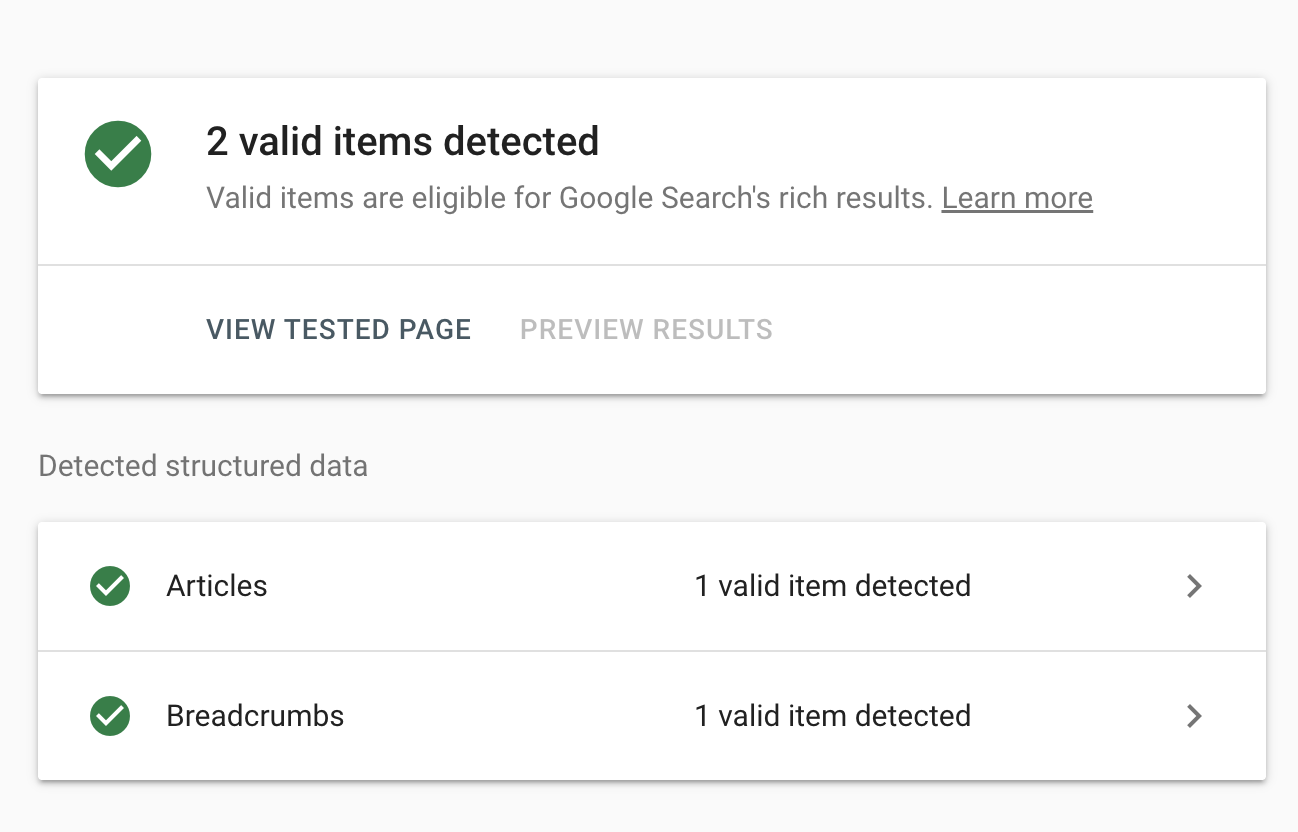
The Rich Results Test is Google's tool. It shows which Google rich result types it found on a page, along with any errors or suggestions.
It works best with a URL. A preview deployment works well for that, and Google recommends the URL input over the code input "because there are JavaScript limitations when using the code input." For a local build, paste the HTML from curl into its code tab.
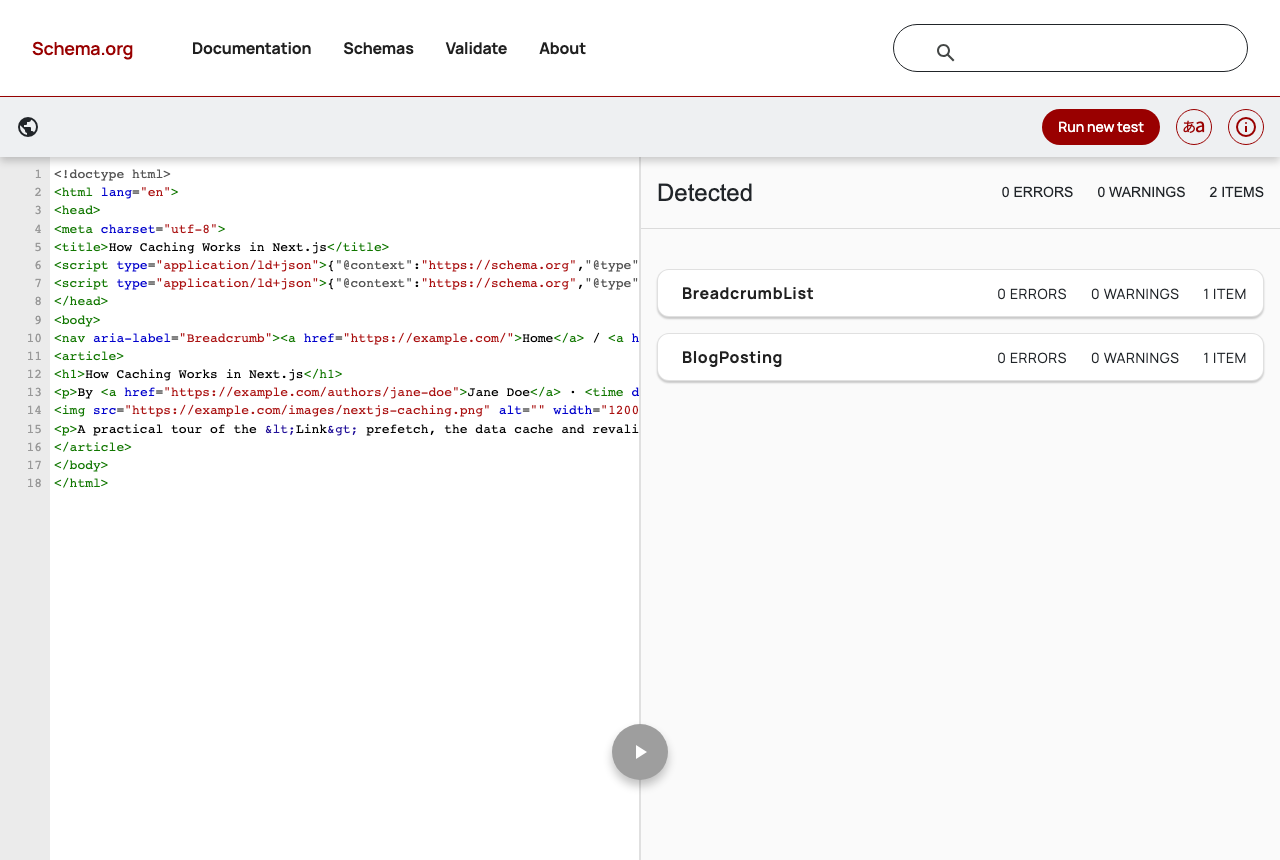
The Schema Markup Validator checks your markup against the Schema.org vocabulary itself. Google's announcement of the tool describes its purpose as checking "syntax and compliance of markup with schema.org standards," without checking Google's rich result types. Use it for types Google doesn't use for rich results, or when you want to know that the markup is valid Schema.org regardless of any search engine.
After you deploy, Google Search Console takes over. Its rich result reports show valid items and errors across every page Google has crawled, and the URL Inspection tool shows what Google saw on a single page. Google's own advice is to use the Rich Results Test "during development, and the Rich result status reports after deployment."
How to Validate JSON-LD Automatically After Every Build
Structured data has a lot of types, properties and rules, and it's easy to make a mistake in the syntax or the implementation. You already deal with that kind of risk everywhere else in software development: you check types, run linters, and write tests, so problems show up before users see them. Structured data shouldn't be any different.
The online tools are great for a first check, but nobody pastes every URL into them after every change. Structured data usually breaks later, quietly: someone renames a field in the CMS, a refactor drops a property, or a heading changes and the JSON-LD doesn't. A small script that runs after every build catches those regressions before they ship.
This one fetches your pages from the running app and checks four things:
Every JSON-LD block is valid JSON.
@contextishttps://schema.org.Each type has the properties your site promises, including Google's required breadcrumb fields.
The
BlogPostingheadline matches the page's<h1>, the visible-content rule as a check.
Create scripts/check-jsonld.mjs:
// Checks the JSON-LD on a running Next.js server: npm run build && npm start, then run this.
const BASE_URL = process.env.BASE_URL ?? "http://localhost:3000";
// Pages that should carry structured data.
const PAGES = ["/", "/blog/nextjs-caching"];
// The properties this site promises for each type.
const REQUIRED = {
Organization: ["name", "url", "logo"],
WebSite: ["name", "url"],
BlogPosting: ["headline", "datePublished", "author", "image"],
BreadcrumbList: ["itemListElement"],
};
const errors = [];
function fail(page, message) {
errors.push(page + ": " + message);
}
function decodeEntities(text) {
return text
.replace(/</g, "<")
.replace(/>/g, ">")
.replace(/"/g, '"')
.replace(/'|'/g, "'")
.replace(/&/g, "&");
}
function checkBreadcrumbs(node, page) {
const items = node.itemListElement ?? [];
if (items.length < 2) {
fail(page, "BreadcrumbList needs at least two items");
}
items.forEach((item, index) => {
const isLast = index === items.length - 1;
if (item.position !== index + 1 || !item.name || (!isLast && !item.item)) {
fail(page, `breadcrumb ${index + 1} needs position, name and item`);
}
});
}
for (const page of PAGES) {
const html = await (await fetch(BASE_URL + page)).text();
// Safe to match with a regex because the JsonLd component escapes every "<".
const blocks = [
...html.matchAll(/<script type="application\/ld\+json">(.*?)<\/script>/gs),
].map((match) => match[1]);
if (blocks.length === 0) {
fail(page, "no JSON-LD found");
continue;
}
const h1 = html.match(/<h1[^>]*>(.*?)<\/h1>/s)?.[1].replace(/<[^>]+>/g, "");
for (const block of blocks) {
let data;
try {
data = JSON.parse(block);
} catch (error) {
fail(page, `invalid JSON (${error.message})`);
continue;
}
if (data["@context"] !== "https://schema.org") {
fail(page, '@context should be "https://schema.org"');
}
for (const node of data["@graph"] ?? [data]) {
const type = node["@type"];
for (const property of REQUIRED[type] ?? []) {
if (node[property] === undefined) {
fail(page, type + ' is missing "' + property + '"');
}
}
if (type === "BreadcrumbList") checkBreadcrumbs(node, page);
if (
type === "BlogPosting" &&
node.headline !== decodeEntities(h1 ?? "")
) {
fail(page, `headline "${node.headline}" doesn't match the <h1>`);
}
}
}
}
if (errors.length > 0) {
console.error(errors.join("\n"));
process.exit(1);
}
console.log(`JSON-LD OK on ${PAGES.length} pages`);
A few details are worth pointing out:
REQUIREDis your own contract, not Google's. Google lists no required properties for Article, so the list says what this site promises to include. Add a type to it when you start using one.The regex that finds the blocks is reliable here only because the
JsonLdcomponent escapes every<. No value can contain</script>, so the first</script>always ends the block. The escape protects your tests as well as your users.React escapes characters like
'and&in the<h1>, sodecodeEntitiesturns them back before the headline comparison.
The script uses the built-in fetch, so it needs no dependencies. Add it to package.json:
{
  "scripts": {
    "check:jsonld": "node scripts/check-jsonld.mjs"
  }
}
With npm start running, run it in a second terminal:
npm run check:jsonld
When everything is in order, it prints JSON-LD OK on 2 pages. To see it fail, I removed the organization's logo, changed the post's <h1> without changing its data, and added the unescaped page from earlier to the list. The script reported all three and exited with code 1:
/: Organization is missing "logo"
/blog/nextjs-caching: headline "How Caching Works in Next.js" doesn't match the <h1>
/experiments/unescaped: invalid JSON (Unterminated string in JSON at position 68 (line 1 column 69))
In CI, run it after npm run build, with npm start running in the background, and set BASE_URL if the server isn't on port 3000. The non-zero exit code fails the job, so broken structured data never reaches production.
Conclusion
Structured data describes your pages to search engines in a form they don't have to guess at. In this tutorial, you added it to a Next.js App Router site:
A
JsonLdcomponent that renders a plain<script>and escapes<, so no value can break out of the tagOrganization and website data on the home page, linked with
@idArticle and breadcrumb data built from the same data the page renders
Checks for what lands in the HTML, the online validators, and a script that validates your JSON-LD after every build
I'd call structured data almost essential today. It's also never been easier to write: an AI assistant can generate a JSON-LD block for any page in seconds. But generated isn't the same as correct.
Check that what it wrote is valid, that it includes the properties Google asks for, and that every value matches what's actually on your page. That's what the validators and the check script are for.
And remember that valid markup makes a page eligible for rich results, not guaranteed to get them.
If you want a second opinion on a live page, the free Greadme Schema Validator checks any URL against Schema.org and Google's rich result requirements, with no sign-up needed.